How to Connect Microsoft Contact Center Intelligence Agents to Teams Phone Numbers and Hand Off to a Call Queue
I put a Microsoft Contact Center Intelligence agent on a real Teams Phone number and handed callers off to a Teams call queue. Here are the steps, how tags route the handoff, and the limits I found: the call arrived with no caller number and no context.
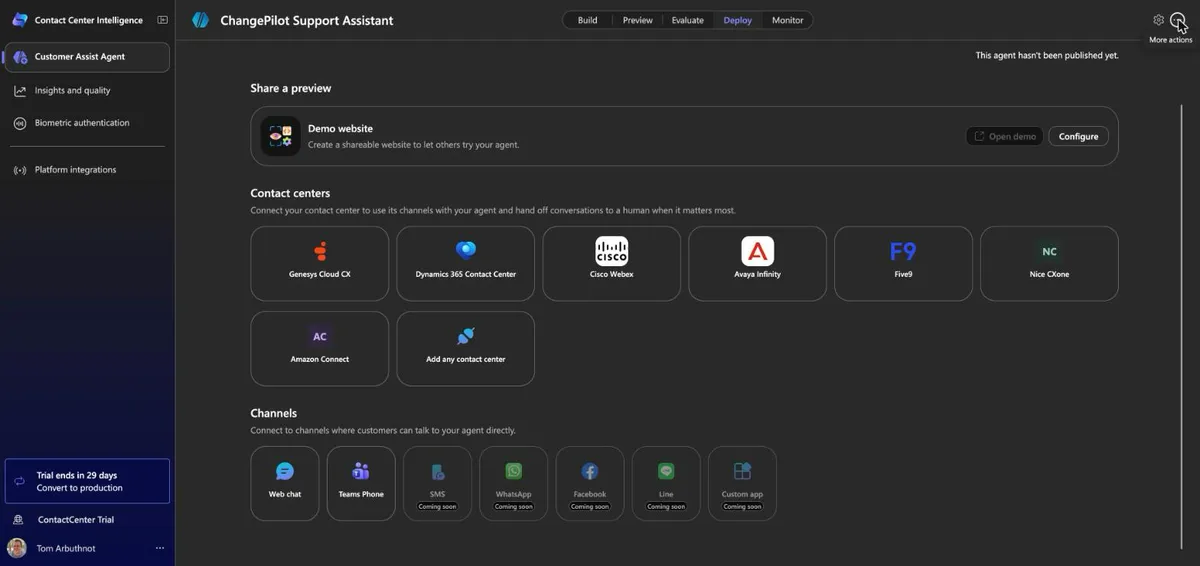
Microsoft Contact Center Intelligence (CCI) is Microsoft's AI layer for the contact centre you already have: AI agents for voice and chat, voice biometrics, and automated quality scoring that you can use without replacing your contact centre telephony, routing, queues or agent desktop.
Microsoft Contact Center Intelligence (CCI) went generally available at Microsoft Ignite, four weeks after its public preview on 21 October. Jeff Teper announced it on 17 November and Omar Aftab published the detailed GA announcement on 18 November. I was at Microsoft Ignite for both sessions, BRK381: Modernize your contact center without rip and replace and BRK379: Build customer-facing agents in Copilot Studio, Teams, and CCI.
Today CCI connects to Genesys Cloud. Joint partnerships for Connectors for Avaya, Cisco and Five9 are announced and currently show as "Coming soon" in the CCI portal, which also lists NICE CXone and Amazon Connect, and, through a "universal connector" you can integrate other platforms (development required).
In these scenarios, the PSTN phone call comes into the contact centre. The contact centre then routes it to the CCI agent over IP, and if any handoff from the agent is needed back to the contact centre, it can route back into the contact centre to human agents
CCI agents can answer PSTN calls from a Calling Plan, Operator Connect or Direct Routing via Teams Phone. You assign the number to a Teams resource account of type "AI Agent" and point that account at the agent.
In Blog 1 I built the agent, a phone support assistant for our ChangePilot product, and got it answering correctly from our help articles. This blog is the Teams side: the number, the routing and the handoff.
Most of it is familiar Teams admin work; here are the steps.
TLDR
- What you build: a Teams resource account of type "AI Agent" with a phone number, pointing at the CCI agent, plus a tag template that routes handoffs to a call queue.
- All three Teams Phone number types are supported: eligible Calling Plan, Operator Connect and Direct Routing numbers. I tested Operator Connect.
- It works on the free CCI trial, with no billing plan and no Copilot Credits purchased. The trial is for evaluation: a live service needs converting to production.
- The handoff uses tags. The agent says "send this caller to SupportTeam", and a tag template in the Teams admin centre decides where SupportTeam goes.
- In my test, the handoff passed the call, not the context. The queue call arrived as "Unknown User", with no caller number and no transcript or summary from the AI conversation.
How it fits together
In CCI Teams Phone is a "channel", not a connector. The phone number belongs to a Teams resource account, and the resource account points at the agent. When the agent hands off, it passes a tag, and Teams maps the tag to a destination.
Caller → Resource account (type: AI Agent, with the phone number) → CCI voice agent → handoff with a tag → Tag template → Teams call queue → Human in Teams
How a call reaches the agent and gets back to a human.
Two people are involved: the person who builds the agent in the CCI portal, who Microsoft calls the maker, and a Teams admin, who owns the resource account, the number and the routing. In a small organisation that may well be the same person, as it was for me.
What you need
- A working CCI agent. See Part 1.
- Teams Phone in the tenant, and a spare Microsoft Teams Phone Resource Account licence, which is free.
- A phone number that can be assigned to a resource account: Calling Plan, Operator Connect or Direct Routing. Microsoft's prerequisites cover which numbers are eligible, and the extra routing or funding needed if the agent will transfer calls to external numbers.
- A call queue with at least one agent, for the handoff.
- A supported environment region. Microsoft says Copilot Studio voice agents are not supported in environments located in France, Germany, India or South Africa. Tenants based in those countries can still use them from an environment in a supported region.
- The right environment settings. The environment needs a Dataverse data store, and "Get new features early" set to No.
- Licences for a live service. I bought nothing extra for this trial. Production needs the Copilot Studio licences in Microsoft's deployment prerequisites and a way to fund Copilot Credits, as well as Teams Phone.
Microsoft's admin-side instructions are in Setup: voice enable Microsoft Copilot Studio agents, and the maker's side is in Deploy an agent.
Step 1: Publish the agent and switch on Teams Phone
In the CCI portal, open the agent's Deploy tab. Teams Phone sits under Channels, next to Web chat. SMS, WhatsApp, Facebook, Line and Custom app are marked "Coming soon".
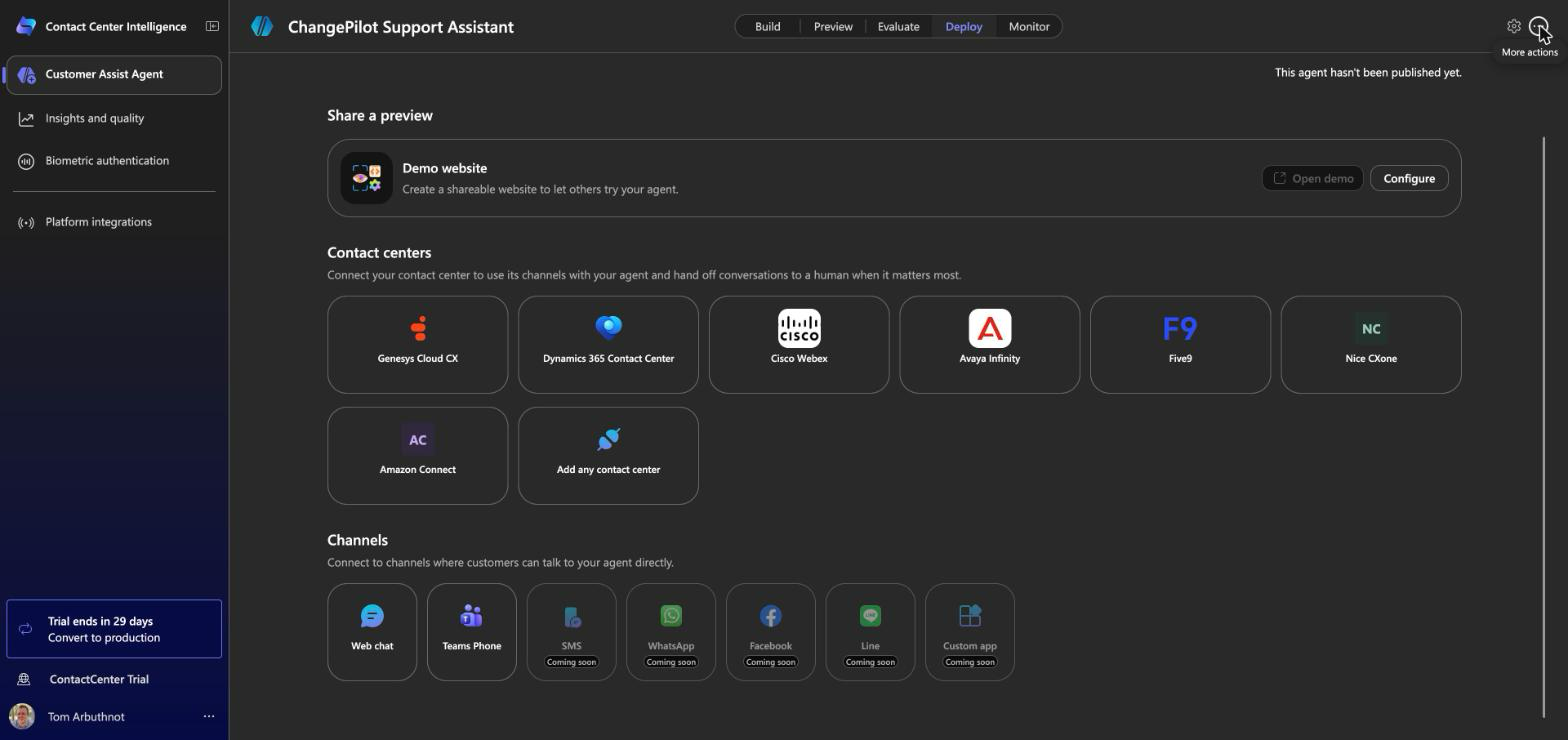
You have to publish the agent first. Until I had, Teams Phone could not be set up. After publishing, I selected Teams Phone, then Enable.
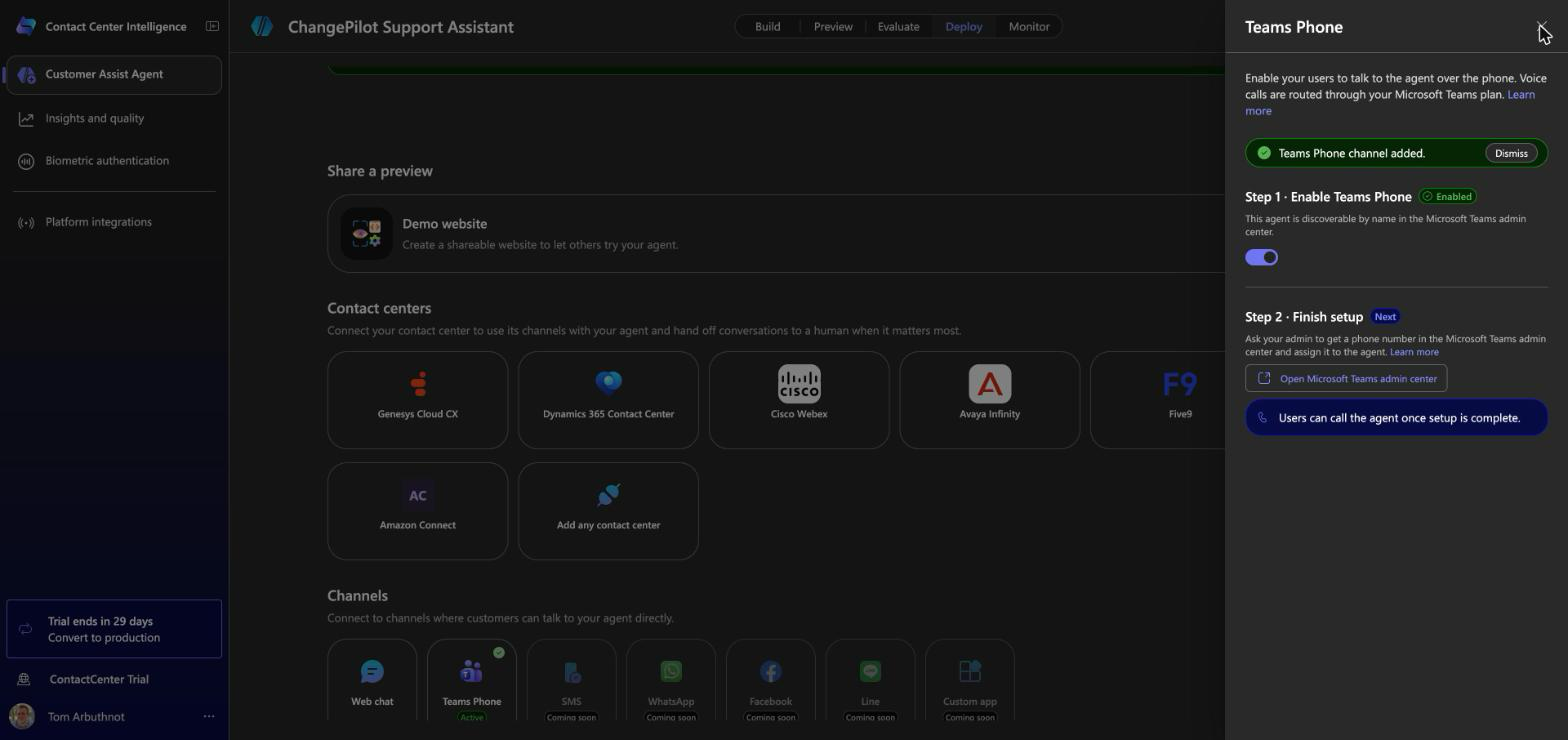
That is the maker's part done for now. The panel says the rest is for the Teams admin.
One thing to remember from here on: the phone number runs the published version of the agent. Every change you make afterwards needs another publish before callers hear it.
Step 2: Resource account, licence and number
This is standard Teams admin work, with one new option.
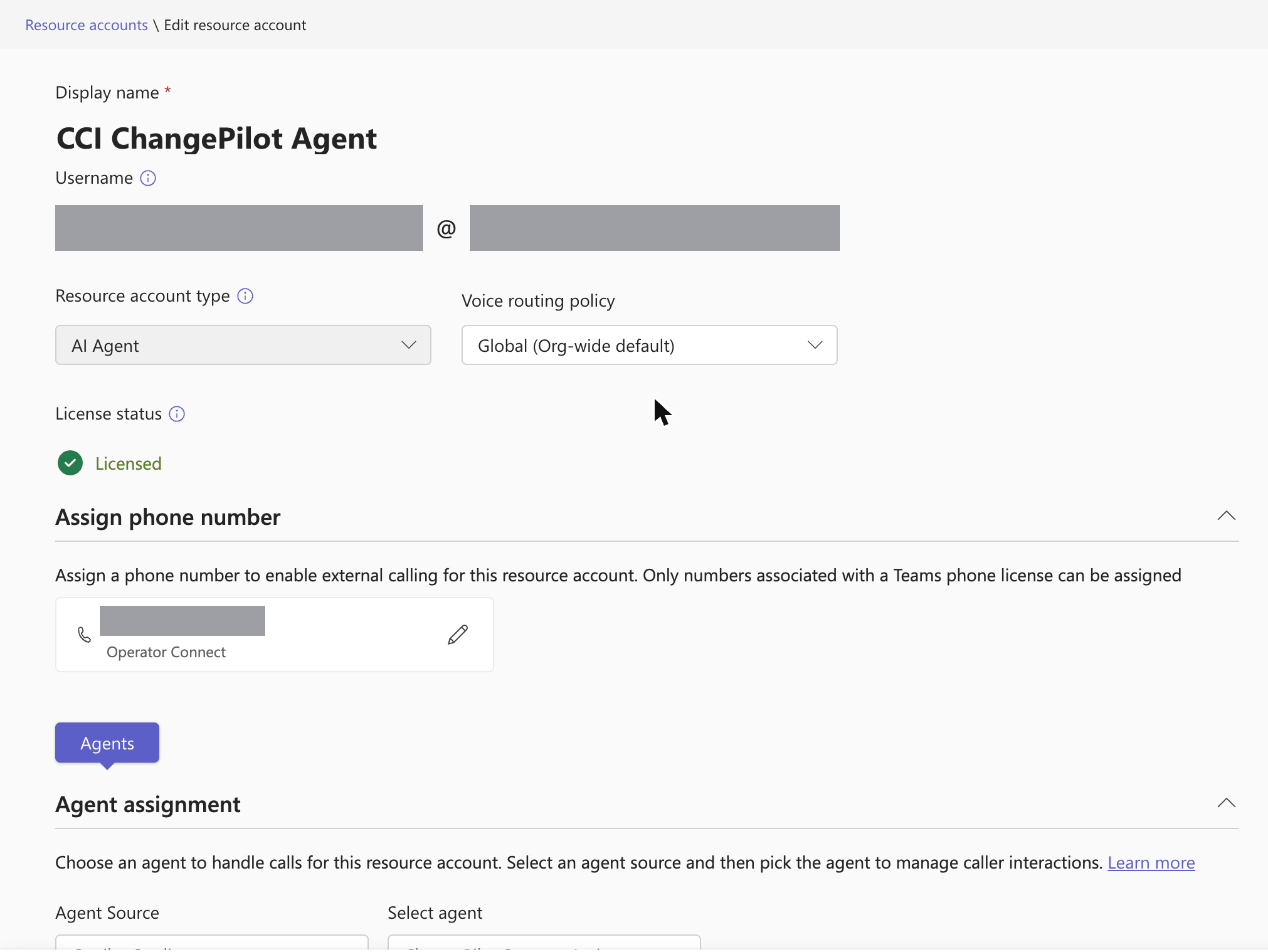
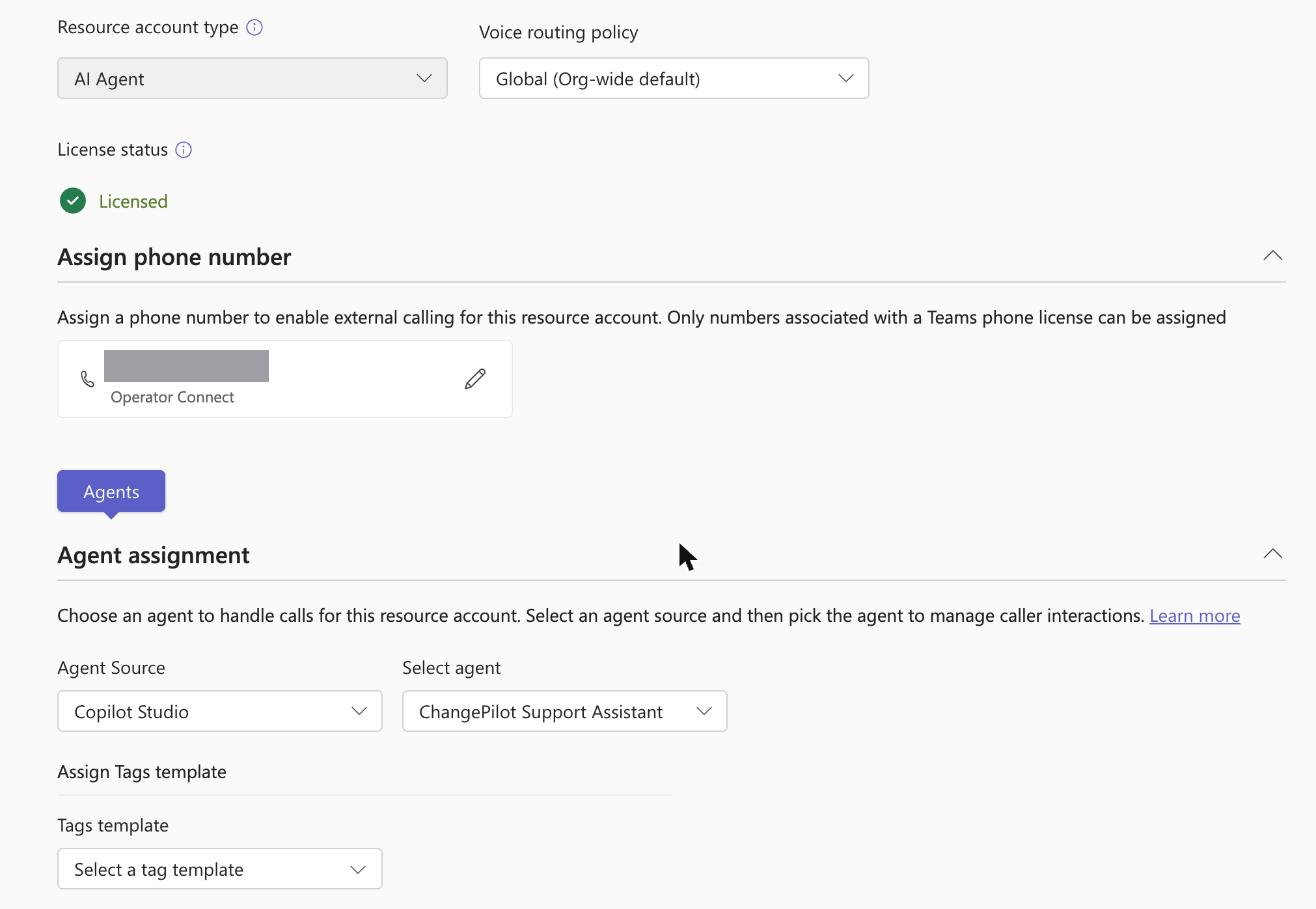
- Create the resource account. In the Teams admin centre, go to Voice > Resource accounts > Add, and set Resource account type to AI Agent.
- License it. In the Microsoft 365 admin centre, find the account under Users > Active users, and under Licenses and apps tick Microsoft Teams Phone Resource Account.
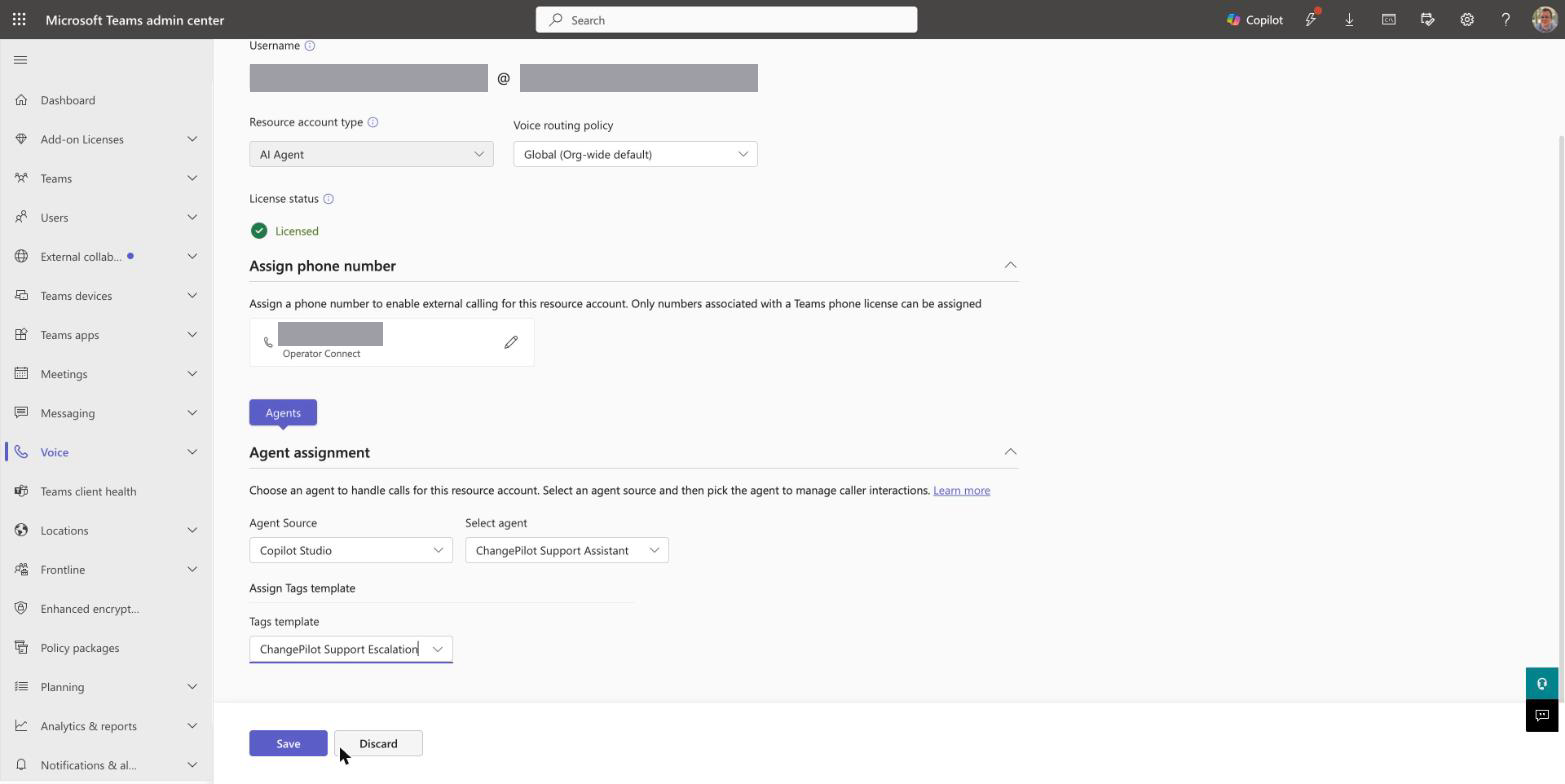
- Link the agent. Edit the resource account. Under Agent assignment, set Agent Source to Copilot Studio and pick your agent by name.
- Assign a number. On the same page, select Assign a phone number and choose the number type and number.
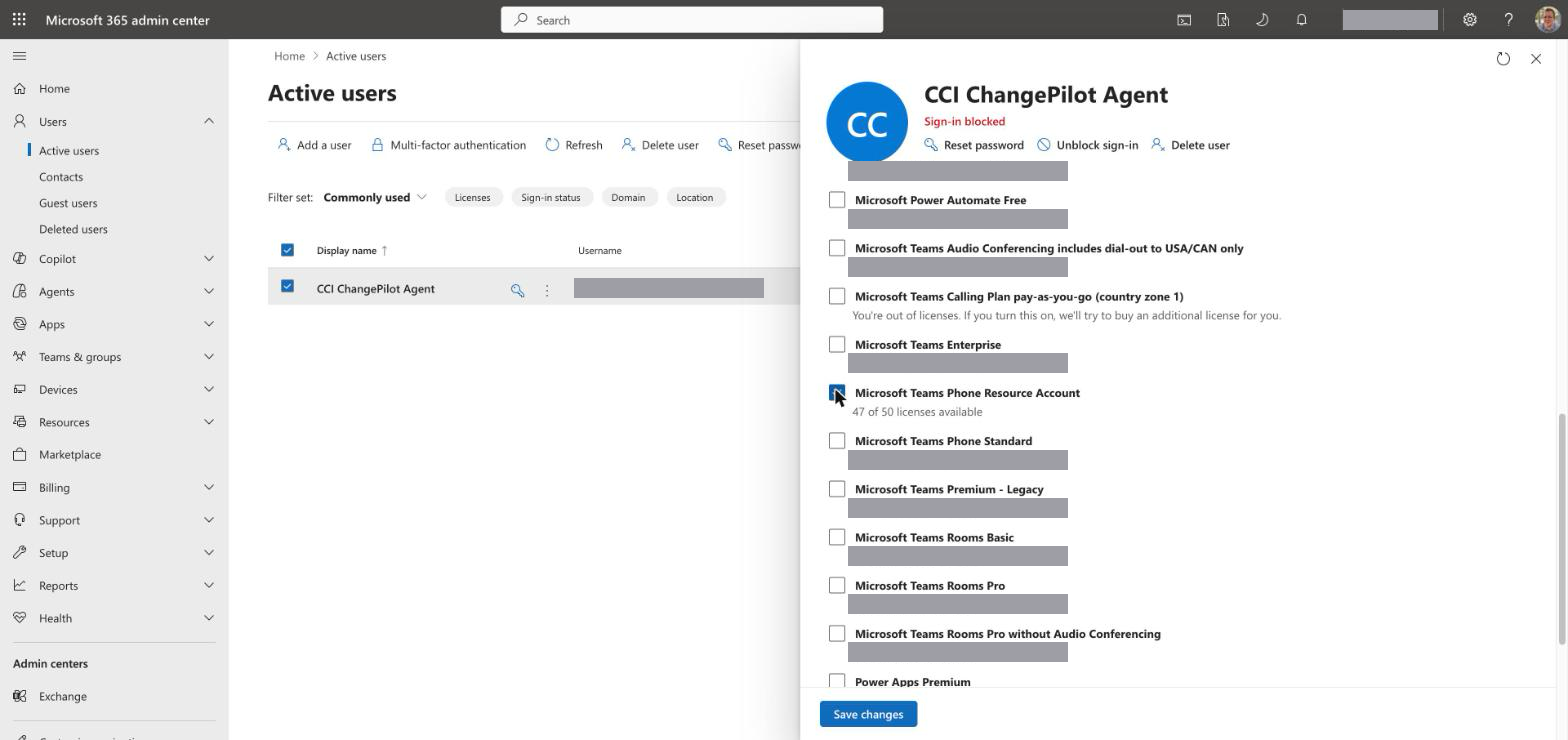
Two practical notes. The licence showed as Licensed in the Teams admin centre about two minutes after I assigned it, and the number can only be assigned once it has. And be careful in that licence list: several other licences say "You're out of licenses. If you turn this on, we'll try to buy an additional license for you."
Then I rang the number from my mobile. It answered first time: "Hello, I'm ChangePilot Support Assistant, powered by Microsoft Contact Center Intelligence. How can I help?"
At this point you have an AI agent on a real phone number. If you never need a human, you can stop here.
Step 3: Create a tag template
When I asked the agent for a person in the voice preview, before any of this was set up, it said "I'll transfer you to the ChangePilot support team", and then nothing happened. No handoff was configured, so it had nowhere to transfer to.
The handoff has three parts, and this is where Microsoft's documentation is thinnest. The first is a tag template, in the Teams admin centre:
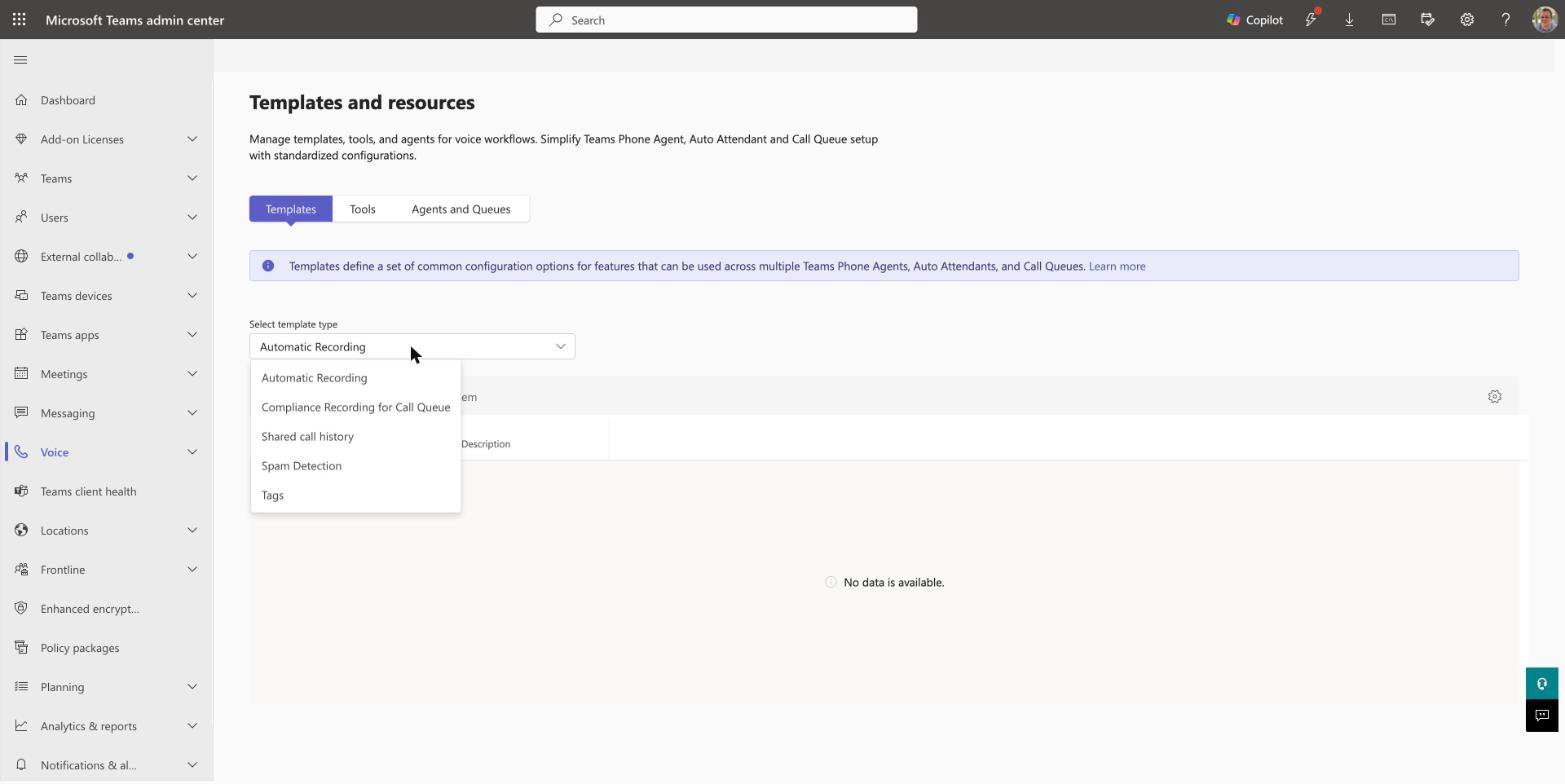
- Go to Voice > Templates and resources.
- On the Templates tab, change Select template type to Tags.
- Select Add, and give the template a name and a description.
- Under Configure Tags and Redirection, select Add. Enter a Tag Name, set Redirect to to Voice app, and search for your call queue as the Destination.
- Save the tag, then save the template.
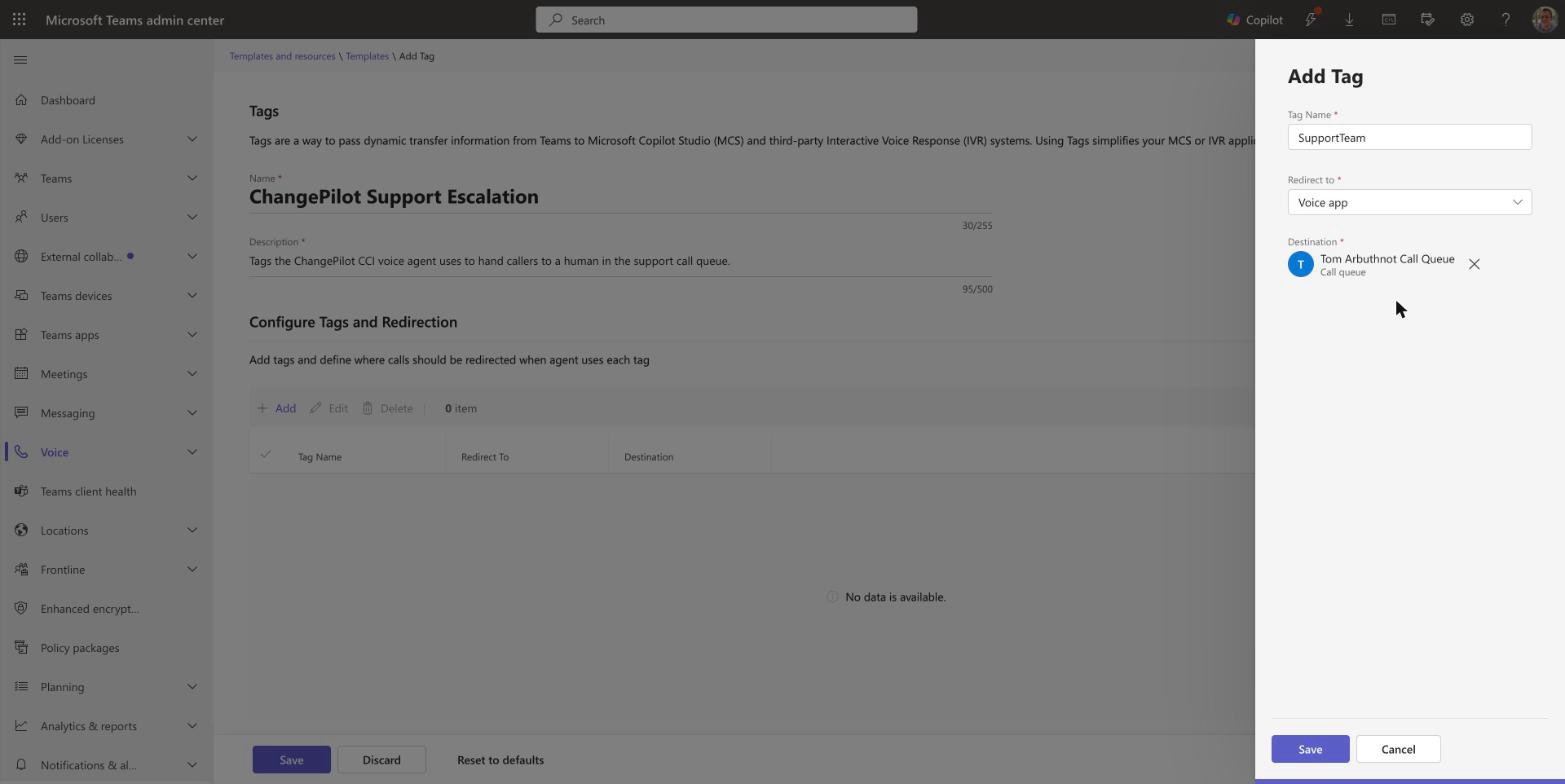
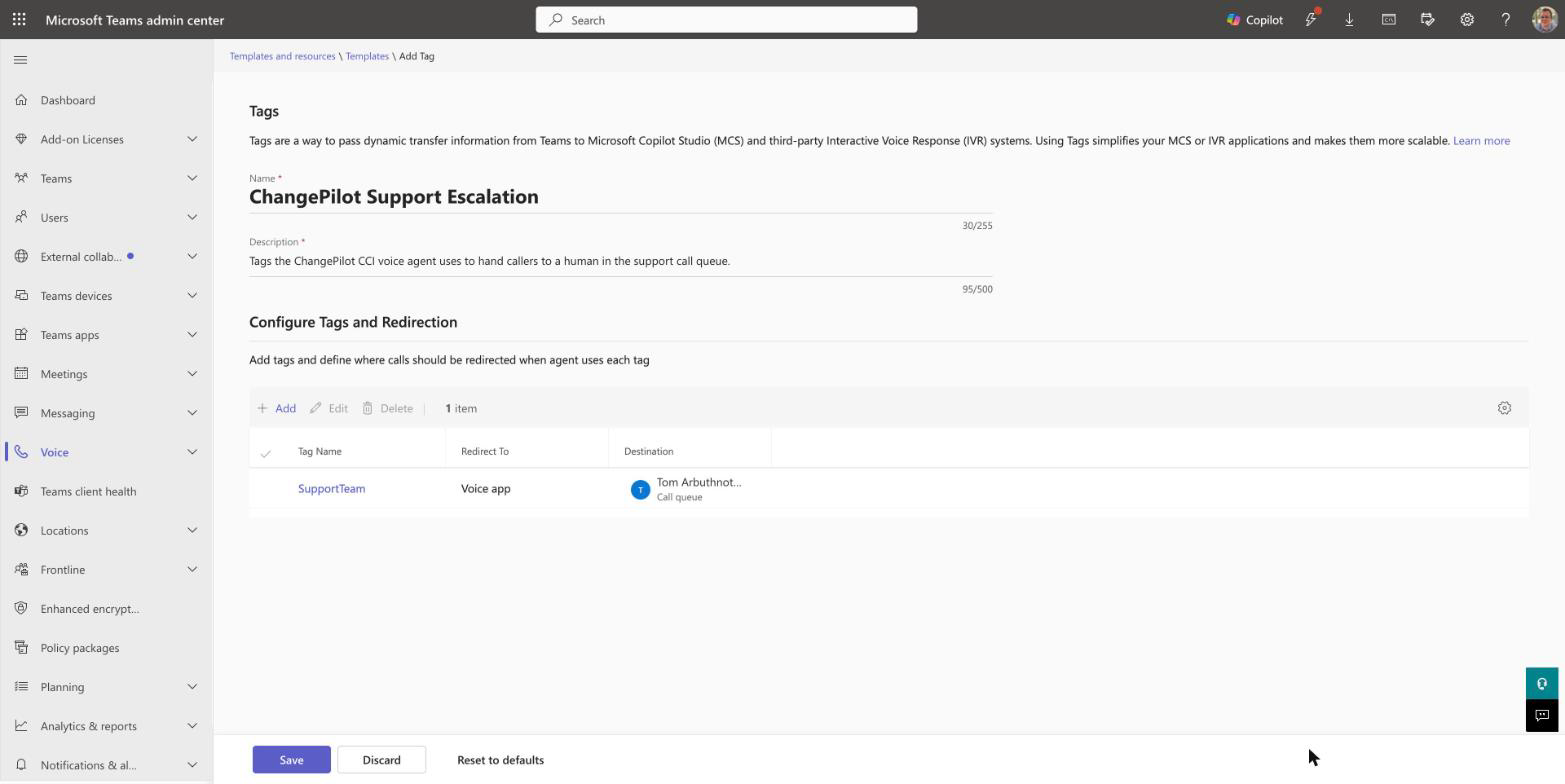
A tag can also redirect to a person, a resource account, shared voicemail or an external phone number, and one template can hold several tags.
Step 4: Attach the template to the resource account
Edit the AI Agent resource account, choose the template under Assign Tags template, and select Save. I had to reload the page before the new template appeared in the list.
Step 5: Add the handoff to the agent
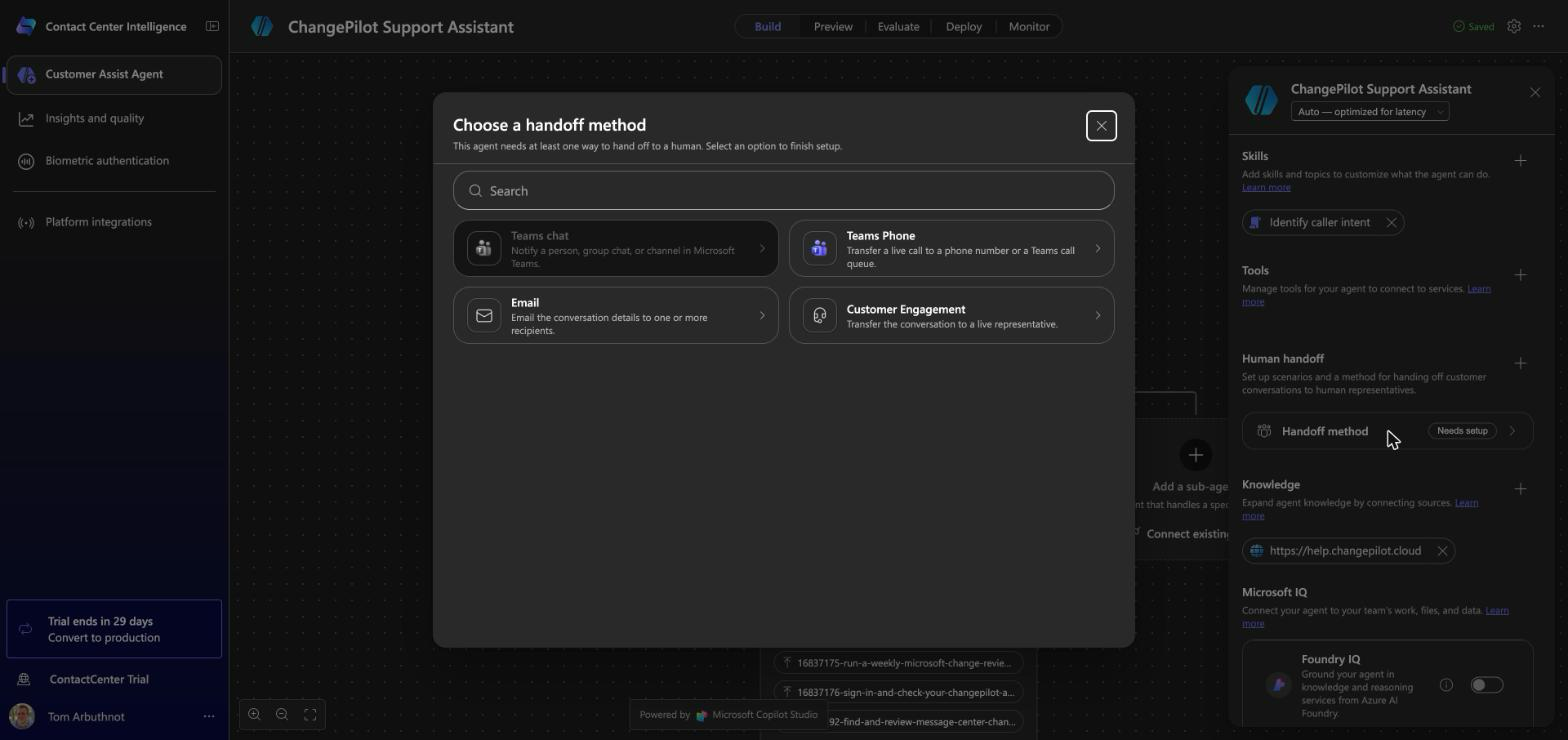
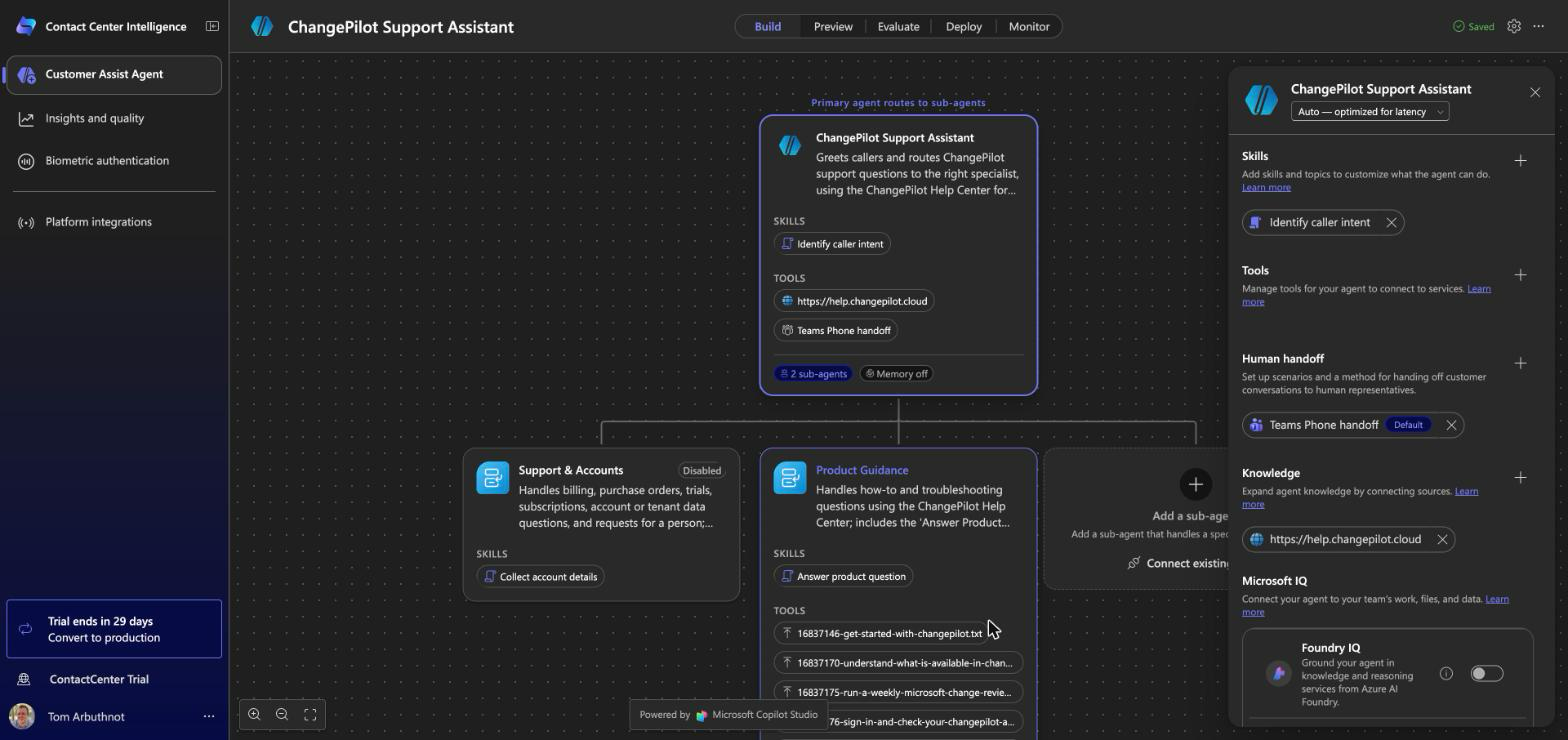
This last part is back in the CCI portal, so it is a job for the maker, the person who built the agent. Microsoft's Teams Phone documentation for customer conversation agents describes adding an Escalate tool under Tools. In the CCI portal I found it somewhere else: in the agent's Human handoff section, where Handoff method was showing "Needs setup".
- Open the primary agent and select Handoff method.
- Choose Teams Phone. The other options are Email and Customer Engagement. Teams chat was listed but greyed out.
- Under Route the call, choose Teams call queue via Tags. The alternative is an external phone number or SIP URL.
- Type your tag name and select + Add next to the Tags box. The tag appears underneath.
- Select Add at the bottom of the dialog to create the handoff.
- Publish the agent again.
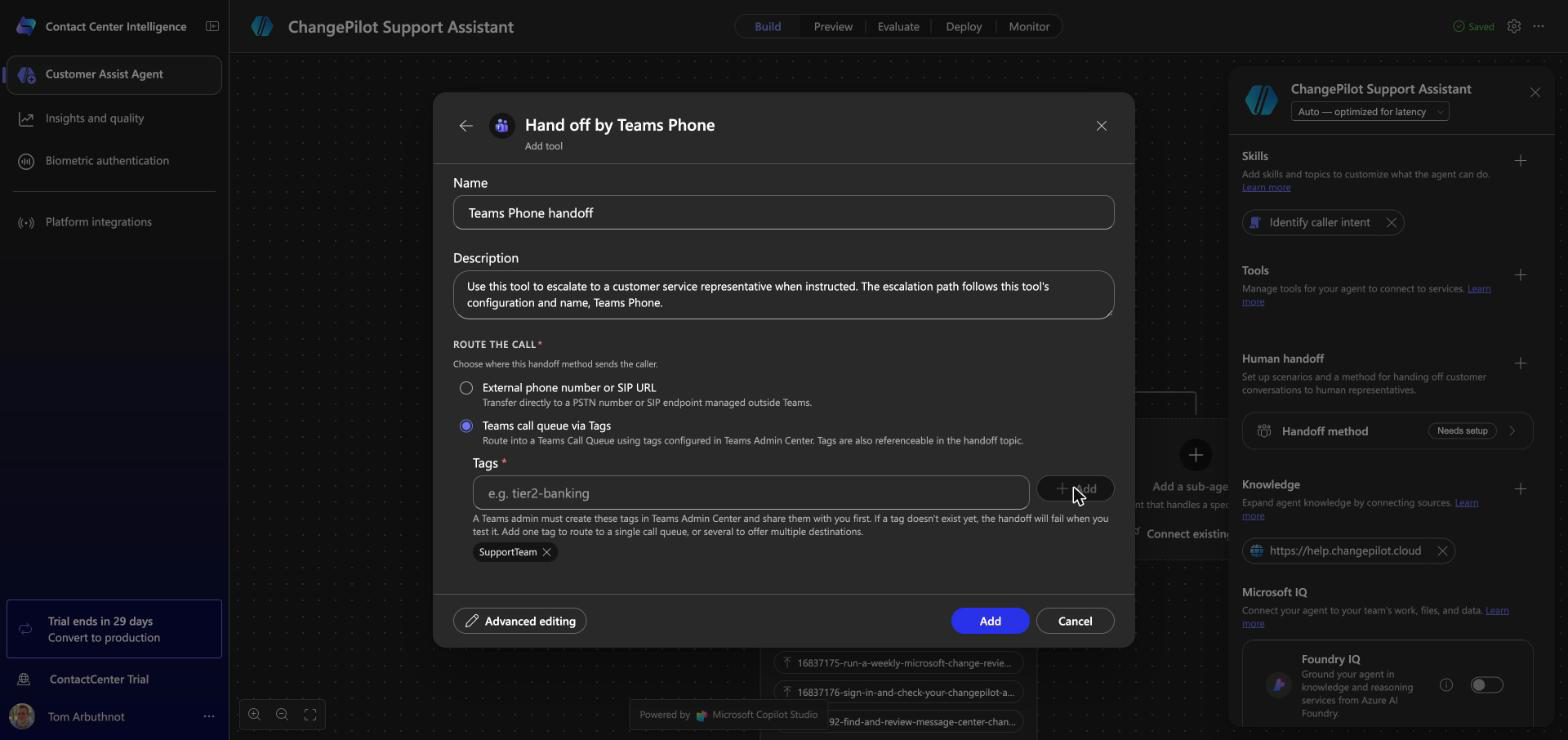
The tag is typed by hand, not picked from a list, and the dialog warns that "if a tag doesn't exist yet, the handoff will fail when you test it". The spelling has to match the template exactly.
Why tags?
I did not understand this at first. Why not just pick a call queue in the agent?
Tags are how the agent and Teams agree on where a call goes without either needing the other's details. The agent only ever says "hand this caller to SupportTeam". Teams looks up SupportTeam in the template attached to that resource account and sends the call wherever the Teams admin pointed it.
That split is useful:
- The maker needs no routing details. No queue IDs or phone numbers live in the agent.
- The Teams admin owns the routing. They can point SupportTeam at a different queue, or an out-of-hours destination, without anyone touching or republishing the agent.
- One agent, several destinations. A template can hold billing, technical and sales tags, and the agent picks one.
The Teams admin centre describes tags as "a way to pass dynamic transfer information from Teams to Microsoft Copilot Studio (MCS) and third-party Interactive Voice Response (IVR) systems". Microsoft's planning guidance is in Templates and resources.
Testing the handoff
My first test taught me something about call queues, not about AI. I rang the number, asked to speak to someone, and heard the queue's hold music. But nothing rang while my Teams status was Busy, and after a minute the queue timed out to voicemail.
That did confirm the whole path, because the voicemail landed in my mailbox: phone number, AI agent, tag, call queue, timeout. The handoff is only as good as the queue behind it. Before you test, make sure a queue agent is Available, and check the queue's timeout.
The second time, with my status set to Available, it rang.
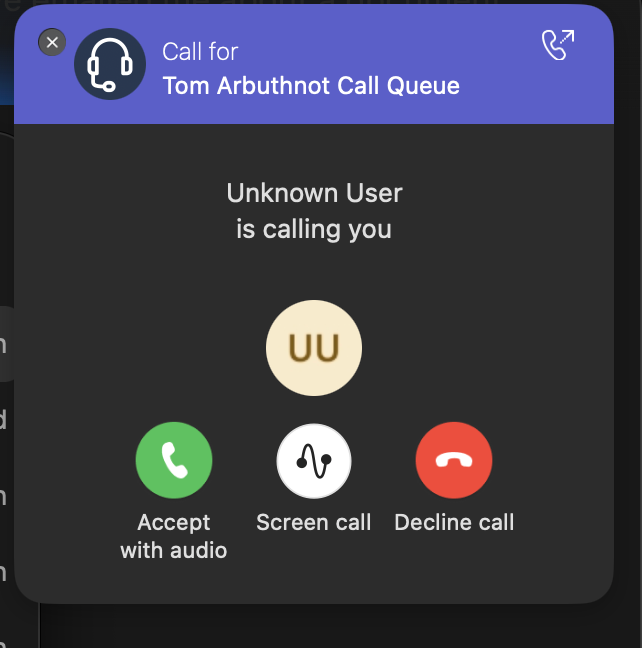
The limitation I found: the call arrived without its context
Look at what that screenshot does not show. It says "Unknown User is calling you". There was no transcript, no summary and no hint of what the caller had already asked the AI agent. The person answering starts from scratch, and the caller has to repeat themselves.
That is the clearest difference from the contact centre route. In Microsoft's Ignite demo, the human agent's contact centre desktop showed the AI conversation and a summary. On plain Teams Phone, in my testing, nothing from the AI conversation was shown with the incoming queue call. I only checked the incoming call notification, and Microsoft's documentation does not say either way, so treat this as what I saw, not a documented limit.
The caller's number did not come through either. I did not see the calling party's number on the transferred call, which is why the screenshot shows "UU", for Unknown User, where you would normally see who is ringing.
If your handoffs are simple, that may be fine. If your people need to know who is calling and why, it is a reason to look at CCI with a contact centre platform, or to wait.
Checking what happened on a call
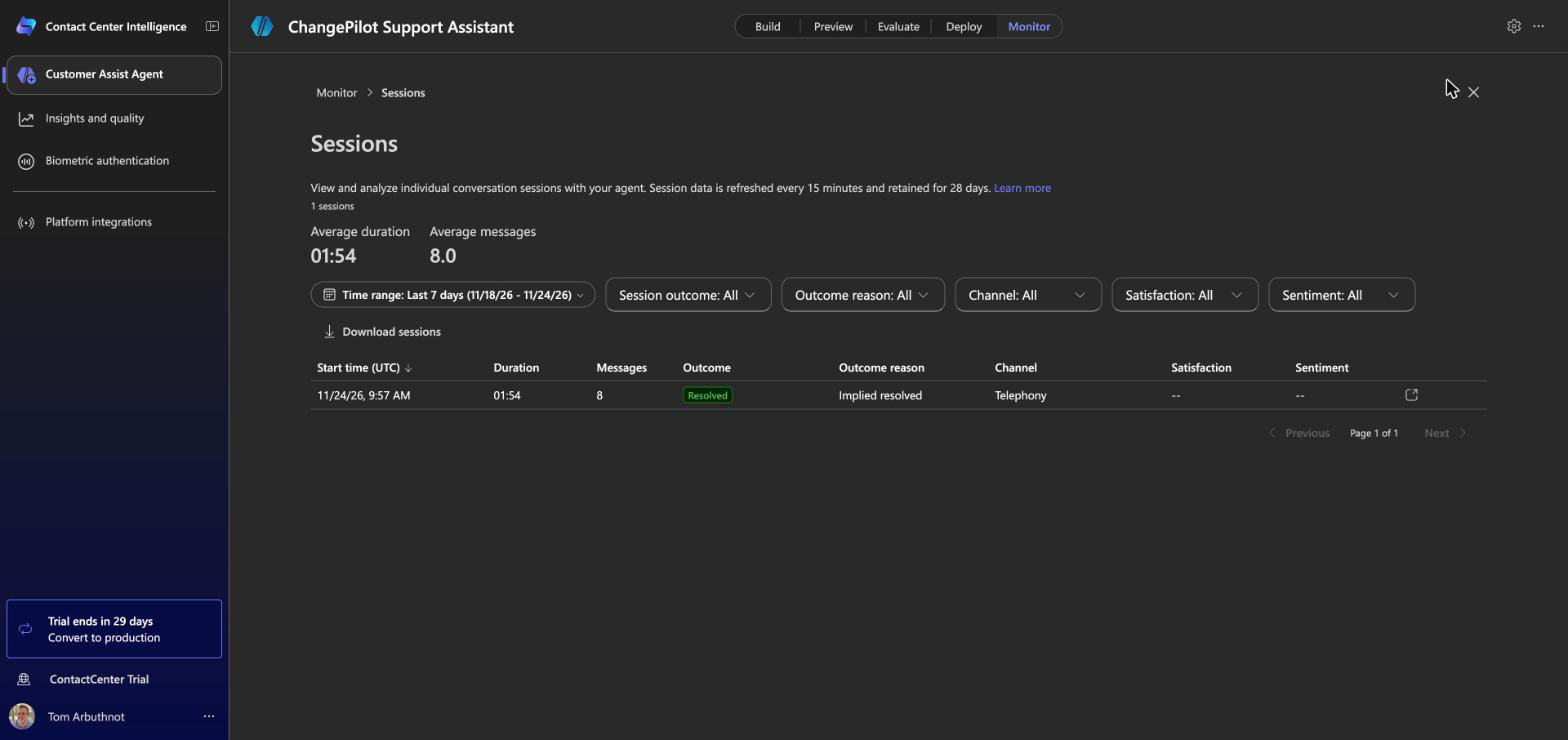
Real calls are logged in the agent's Monitor tab in the CCI portal, with a transcript timestamped to the second. It is how I found an 11-second gap between a question and its answer on the default voice. I cover the logs, and the two voice models, in Part 1.
What it costs
On the Teams side, very little: the resource account licence is free, and you pay for the number and calls as you do today.
The agent itself is usage based, in Copilot Credits, on top of the Copilot Studio licences mentioned above. Using Microsoft's planning estimates, a five-minute call is roughly $0.50 to $0.75 on the default voice and $0.85 to $1.10 on the faster one. Those are illustrative running costs in US dollars, before telephony and before any credits used building and testing. To model your own volumes, use the cost calculator we built on Empowering.Cloud. There is more on costs in Part 1.
What caught me out
- Publish before Teams Phone, and after every change. The number runs the published agent.
- The handoff is under Human handoff, not Tools. That is not where the documentation puts it.
- The tag is typed, not picked. It must match the template exactly.
- A new tag template needs a page reload before it appears on the resource account.
And what is not there yet:
- No context on handoff to Teams, in my test. The human got the call, not the conversation.
- No memory on Teams Phone. The agent's settings say memory is limited to agents published to Dynamics 365 Contact Center. This makes some sense as memory requires the caller to sign in somehow or use the CCI voice recogntion.
- No handoff to Teams chat. It is listed, but greyed out.
- Check the status of direct dial. Teams Phone Agent is documented as generally available. Microsoft's Teams setup page for dialling a Copilot Studio agent directly still lists public preview as its latest milestone, and I have not found a separate general availability statement for it.
Other ways to connect from Teams to a CCI Agent
Direct dial to an AI Agent resource account is the simplest route, and the one I tested. Microsoft documents two others:
- From a Teams Phone Agent. A Teams Phone Agent can hand calls to a CCI voice agent. CCI agents are really a type of Copilot Studio voice agent. So when you've seen demos of Teams Phone Agent handing off to Copilot Studio voice agents, CCI would work in the same way
- From an auto attendant menu. The auto attendant setup page lists "Agents & queues" as a menu destination, to "access Microsoft Copilot Studio (MCS) agents and third party IVRs".
I have not found a documented way for an ordinary call queue to send a call to the agent. E.g., if a human agent wanted to hand off a call to an AI agent
Sources
- Setup: voice enable Microsoft Copilot Studio agents, Microsoft Teams documentation
- Deploy an agent (Customer Conversation)
- Teams Phone with Customer Conversation agents
- Planning: templates and resources, including tags
- Plan for Teams Phone Agent, agents and queues
- Set up an auto attendant
- Contact Center Intelligence documentation, Microsoft Learn
- Try Contact Center Intelligence: the 30-day trial
- Usage-based billing overview and credit estimates

Comments ()