How To Build a Microsoft Contact Center Intelligence (CCI) Agent Step by Step
I built a Microsoft Contact Center Intelligence voice agent on the free trial and tested it properly. Building it took minutes; getting correct answers took longer. Here is what worked, what the agent made up, and how the two voice models compare.
Microsoft Contact Center Intelligence (CCI) is Microsoft's AI layer for the contact centre you already have: AI agents for voice and chat, voice biometrics, and automated quality scoring that you can use without replacing your contact centre telephony, routing, queues or agent desktop.
Microsoft Contact Center Intelligence (CCI) went generally available at Microsoft Ignite, four weeks after its public preview on 21 October. Jeff Teper announced it on 17 November and Omar Aftab published the detailed GA announcement on 18 November. I was at Microsoft Ignite for both sessions, BRK381: Modernize your contact center without rip and replace and BRK379: Build customer-facing agents in Copilot Studio, Teams, and CCI.
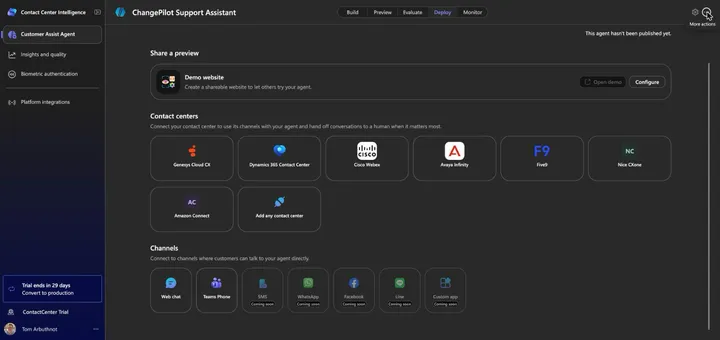
Today CCI connects to Genesys Cloud. Joint partnerships for Connectors for Avaya, Cisco and Five9 are announced and currently show as "Coming soon" in the CCI portal, which also lists NICE CXone and Amazon Connect, and, through a "universal connector" you can integrate other platforms (development required).
In these scenarios, the PSTN phone call comes into the contact centre. The contact centre then routes it to the CCI agent over IP, and if any handoff from the agent is needed back to the contact centre, it can route back into the contact centre to human agents
CCI agents can answer PSTN calls from a Calling Plan, Operator Connect or Direct Routing via Teams Phone. You assign the number to a Teams resource account of type "AI Agent" and point that account at the agent. In this blog I go through the steps and my testing.
This is Blog, I go over building and testing the agent. In Part 2 I put it on a Teams Phone number and hand callers off to a Teams call queue.
I used an example use case of building an AI voice agent to answer questions about our ChangePilot Microsoft Change Workflow Solution.
TLDR
- Building is quick. Describe what you want in plain language and the builder generates an agent, with sub-agents, in about a minute and a half.
- It works on the free trial. I did all of this on the 30-day CCI trial, with no billing plan and no Copilot Credits purchased. The trial is for evaluation, not for a live service.
- Instructions fix behaviour: I needed four rounds of instruction changes to tune the experience, and I expect you would keep tuning it if you wanted a really great experience
- Two voice modes: the default is the cheaper speech-to-text and text-to-speech pipeline. The speech-to-speech mode felt more responsive, at roughly 50 to 70% more per minute.
- Call logs are good. A real call gets a transcript timestamped to the second, which shows the gap between a question and its answer.
What you need
- A CCI environment. The free 30-day trial is enough to evaluate it, with no credit card. I let it create a new trial environment; you can also choose an eligible existing Dataverse environment. Microsoft says not to use trial resources for production, and access ends after 30 days unless you convert the environment.
- Copilot Studio tenant and user licences for the person building the agent, according to Microsoft's deployment documentation. Microsoft calls that person the maker.
- Your content, in a form the agent can actually read. More on that below.
Step 1: Describe the agent
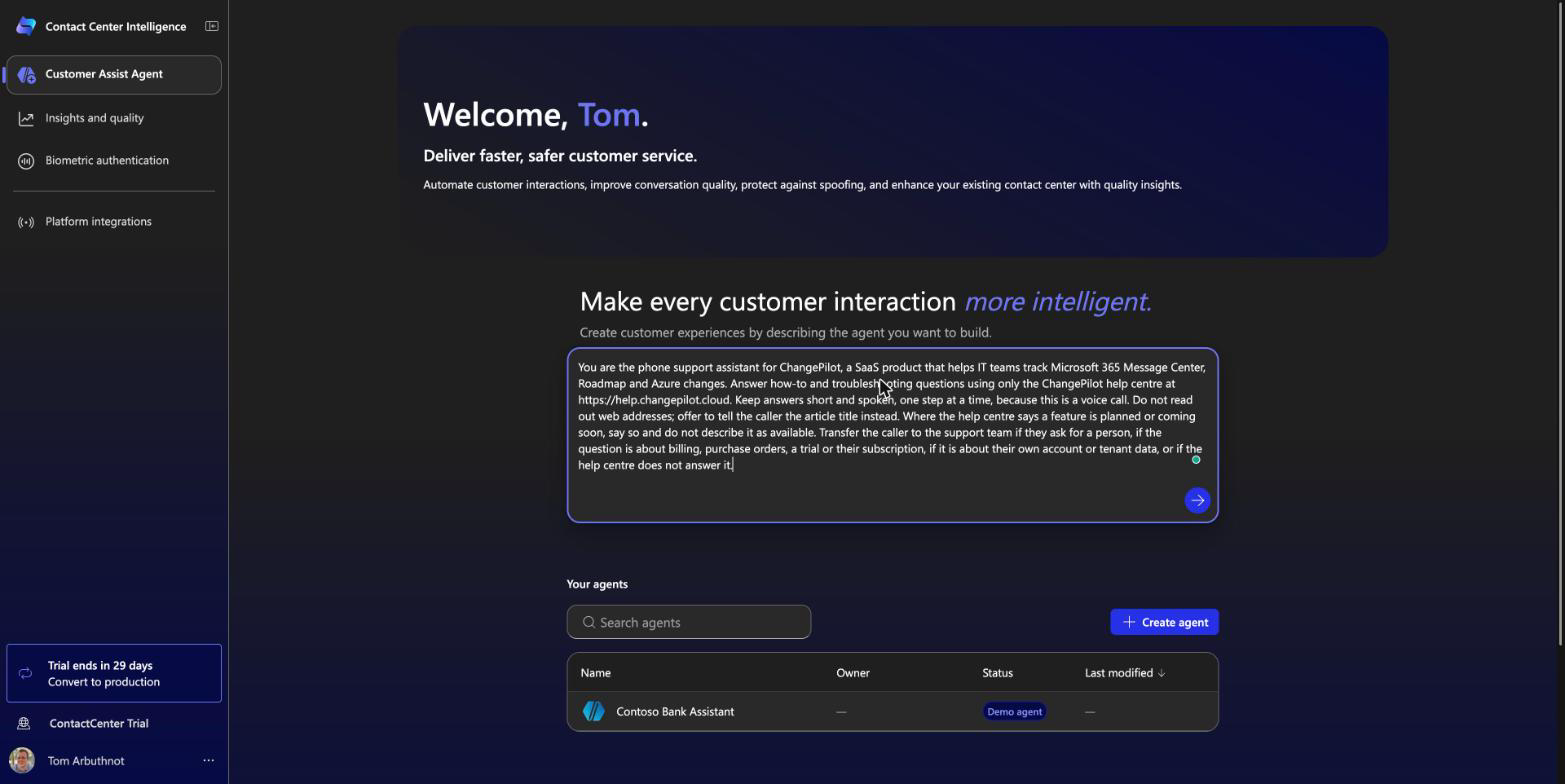
In the CCI portal, you describe the agent you want in plain language. This is what I pasted in:
You are the phone support assistant for ChangePilot, a SaaS product that helps IT teams track Microsoft 365 Message Center, Roadmap and Azure changes. Answer how-to and troubleshooting questions using only the ChangePilot help centre at https://help.changepilot.cloud. Keep answers short and spoken, one step at a time, because this is a voice call. Do not read out web addresses; offer to tell the caller the article title instead. Where the help centre says a feature is planned or coming soon, say so and do not describe it as available. Transfer the caller to the support team if they ask for a person, if the question is about billing, purchase orders, a trial or their subscription, if it is about their own account or tenant data, or if the help centre does not answer it.
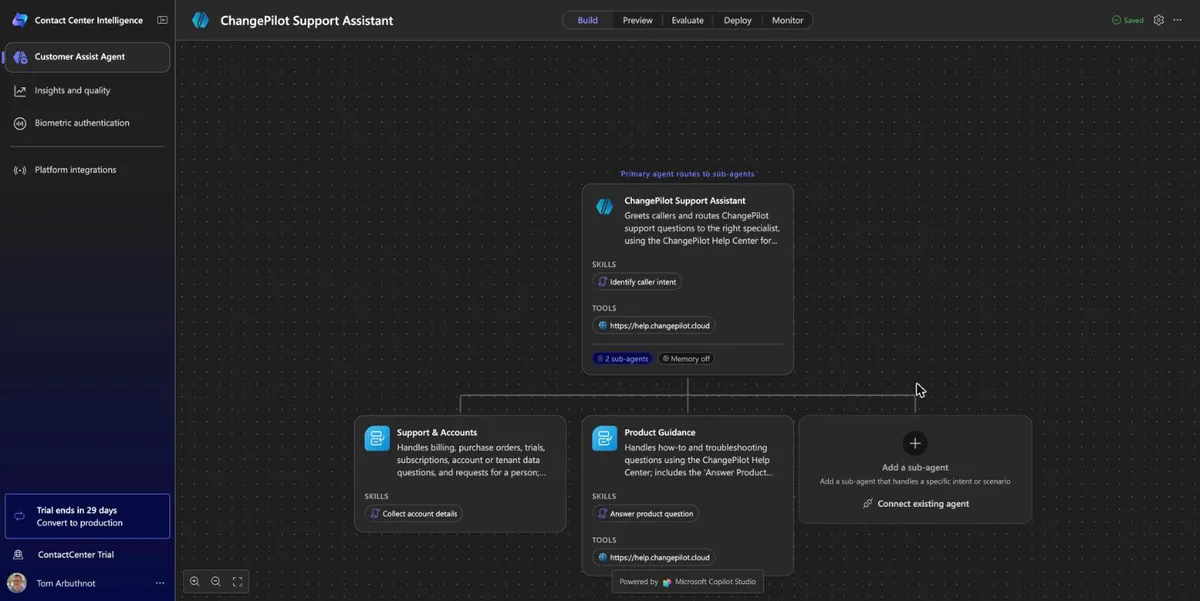
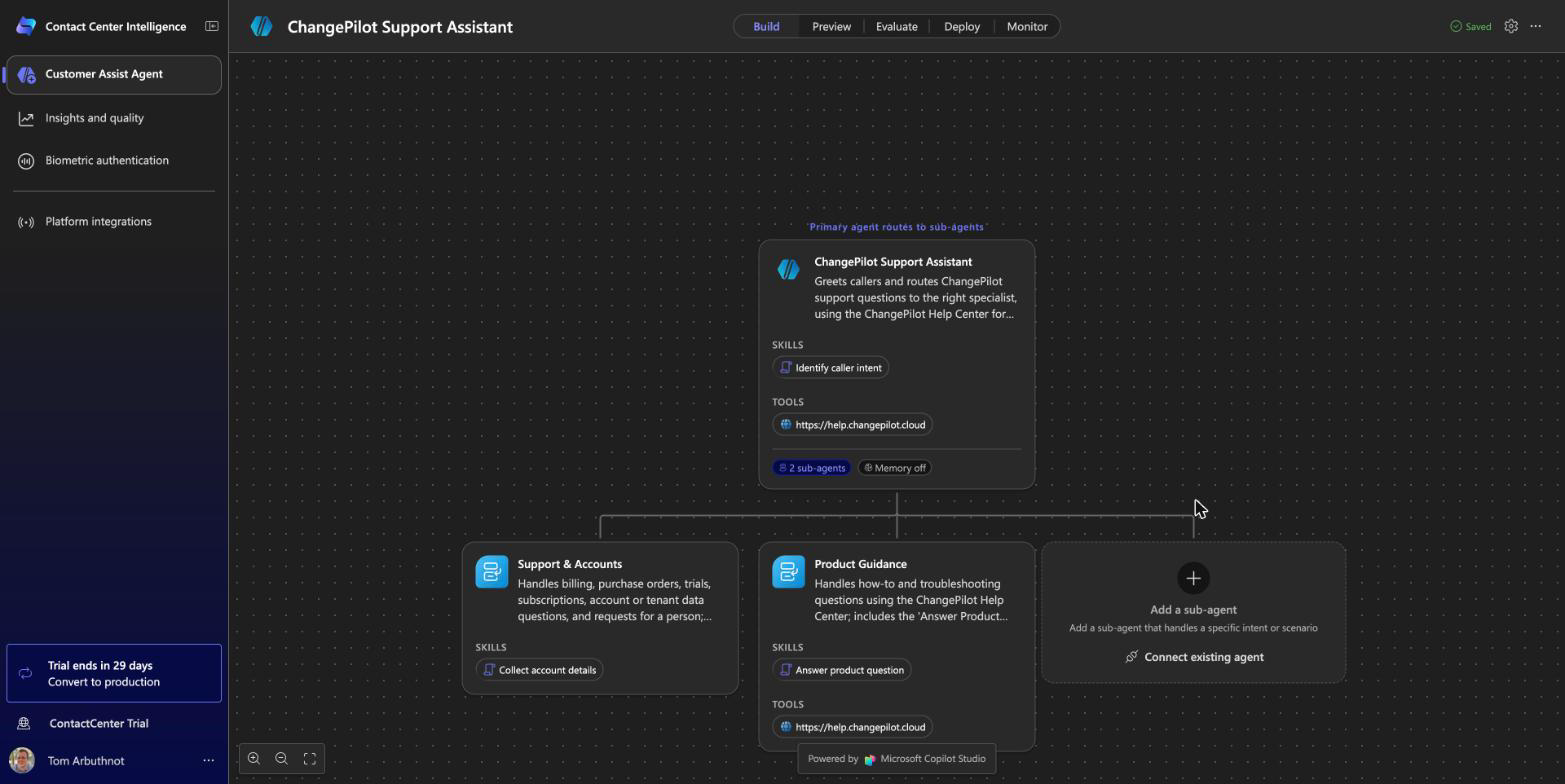
About a minute and a half later I had a working agent. Without being asked, the builder split it into a primary agent and two sub-agents, Product Guidance and Support & Accounts, and added the help centre address as a knowledge source.
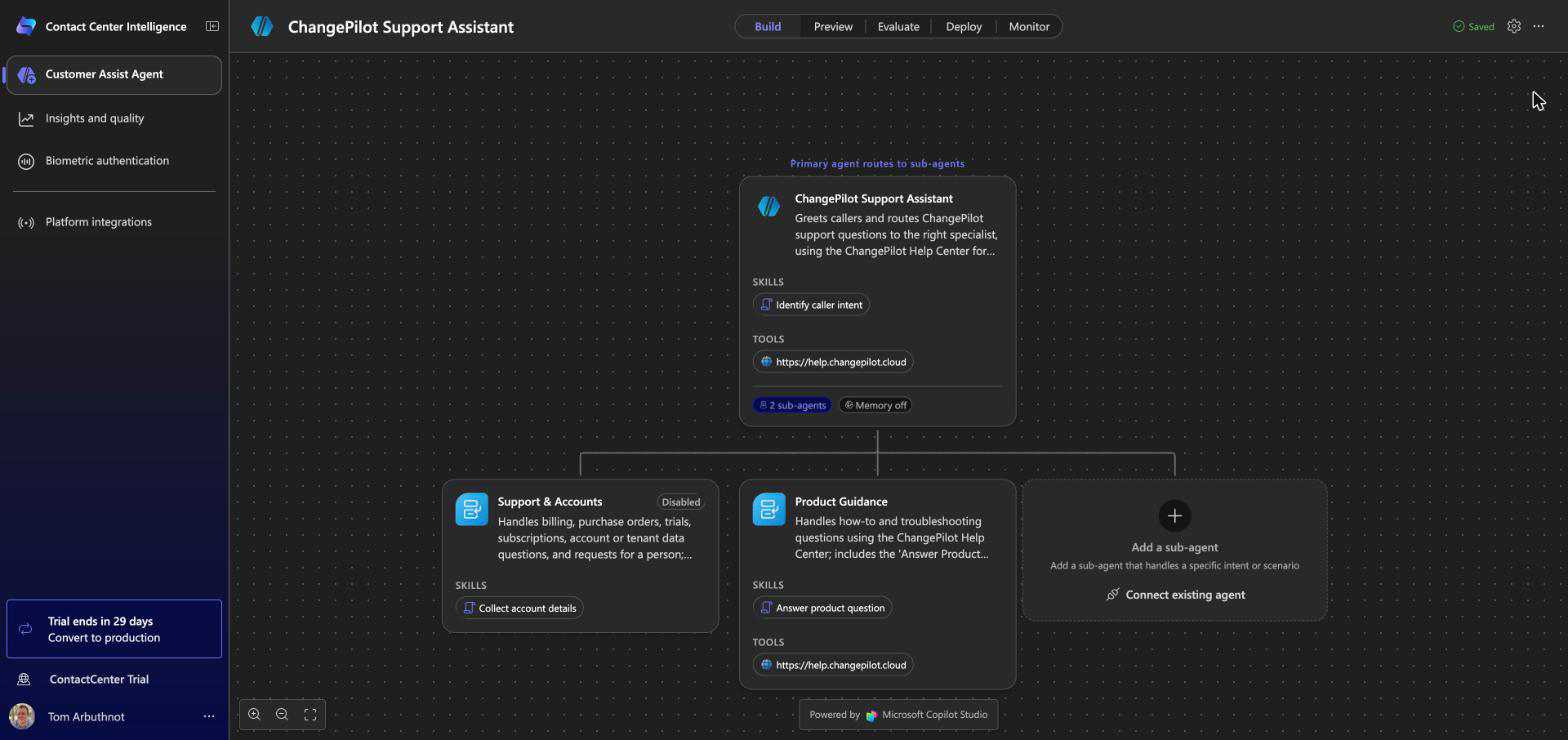
I wanted to keep this simple, so I switched off the Support & Accounts sub-agent. Each sub-agent has an Enabled toggle in its ... menu, so you can bring it back later.
Read what the builder generates before you trust it. Mine had written instructions telling the agent to collect the caller's name, company and email before doing anything, which I had not asked for and did not want.
Two things worth knowing in the agent's settings:
- Instructions come in three tabs: General, Voice and Chat. Voice is "extra guidance for phone calls, layered on top of the general instructions".
- Memory says "Available only for agents published to Dynamics 365 Contact Center". So the returning-caller memory Microsoft demoed at Ignite is not available on every channel.
Step 2: Give it knowledge that actually works
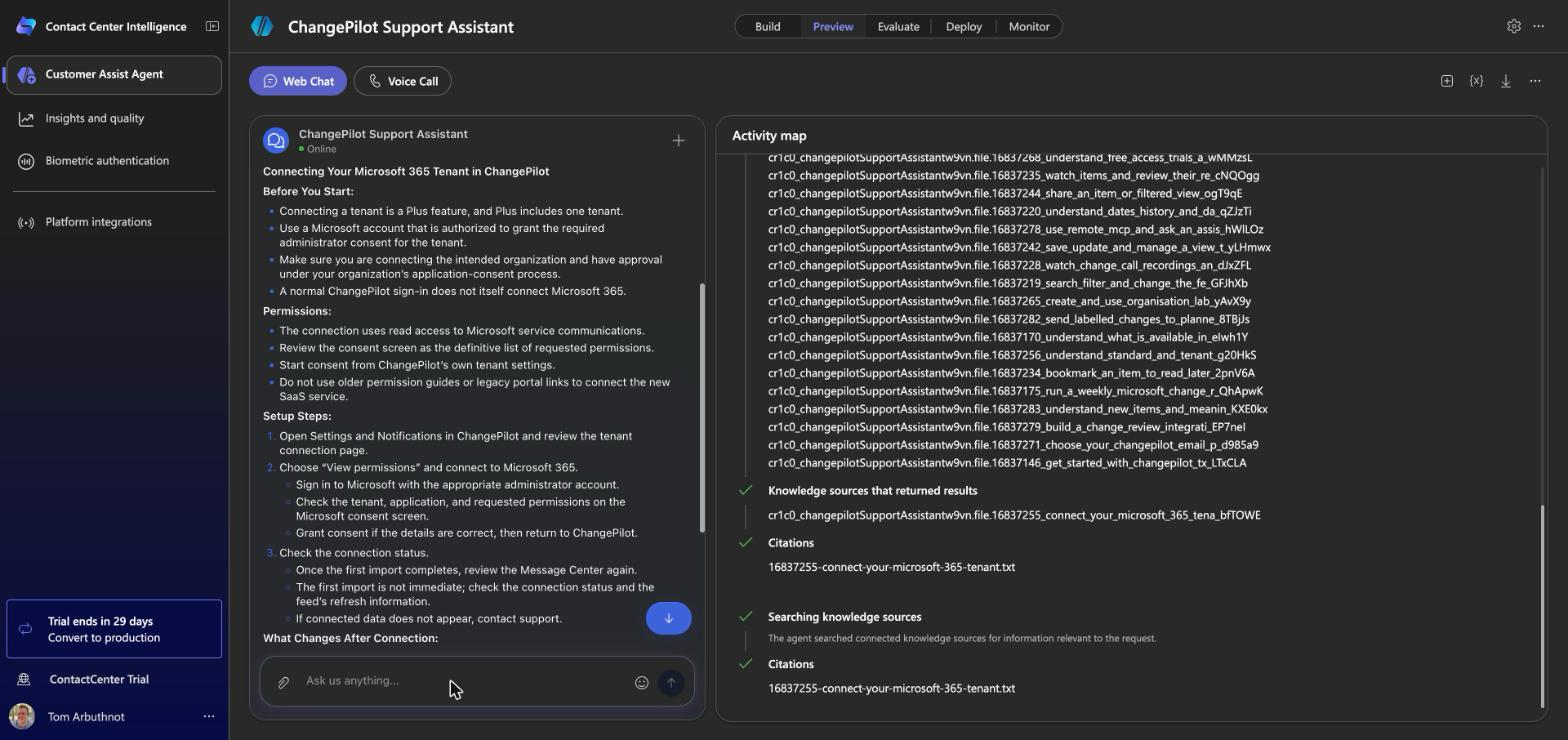
The builder accepted our ChangePilot public help centre as a knowledge source and showed its status as "Ready". In the preview, the activity map showed "Knowledge sources searched" on every question, and the answers sounded confident but they were wrong.
Asked how to connect a Microsoft 365 tenant, the agent told callers to go to an "Integrations section" and said they needed to be a Global Administrator. Neither is in our help article, which says to open Settings and Notifications, and that you need the Plus plan and an administrator who can grant consent.
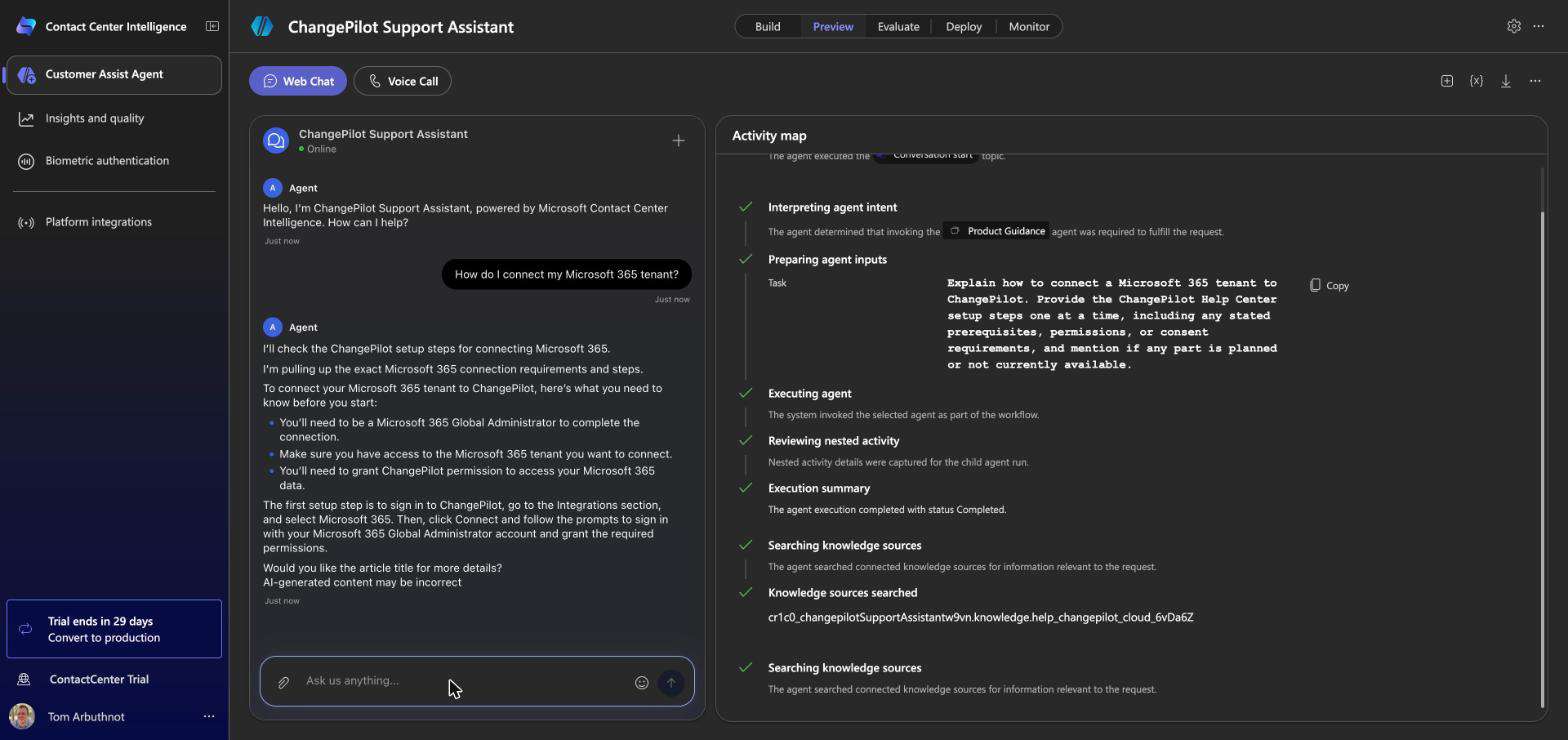
I tried to fix it with better instructions, twice. The style improved; the facts did not. Instructions cannot fix content the agent never receives.
The cause is in Microsoft's public website knowledge documentation: website sources use "Grounding with Bing Search", and sites "not indexed by Bing aren't supported". Our help centre runs on Intercom, and its pages carried a noindex tag telling search engines to leave them out. Nothing was blocked and nothing errored. The search simply came back empty, and the model filled the gap with a plausible guess. I would have liked to have seen the builder point out that the website was noindex, so it couldn't get to the data.
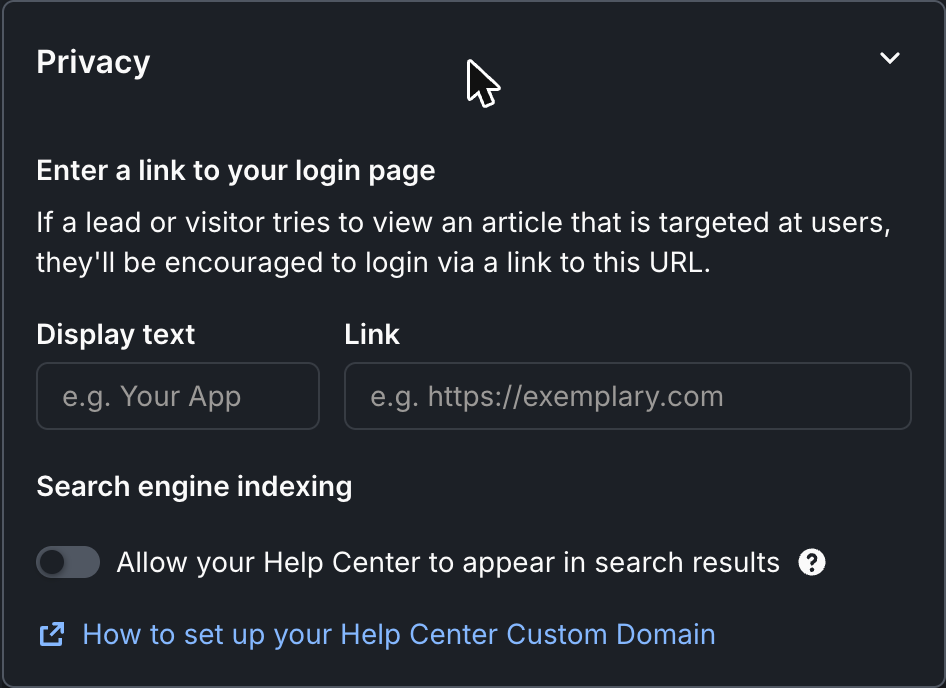
I've since changed the setting in Intercom to allow the pages to index, but to give CCI the best shot, I decided to add the knowledge articles directly
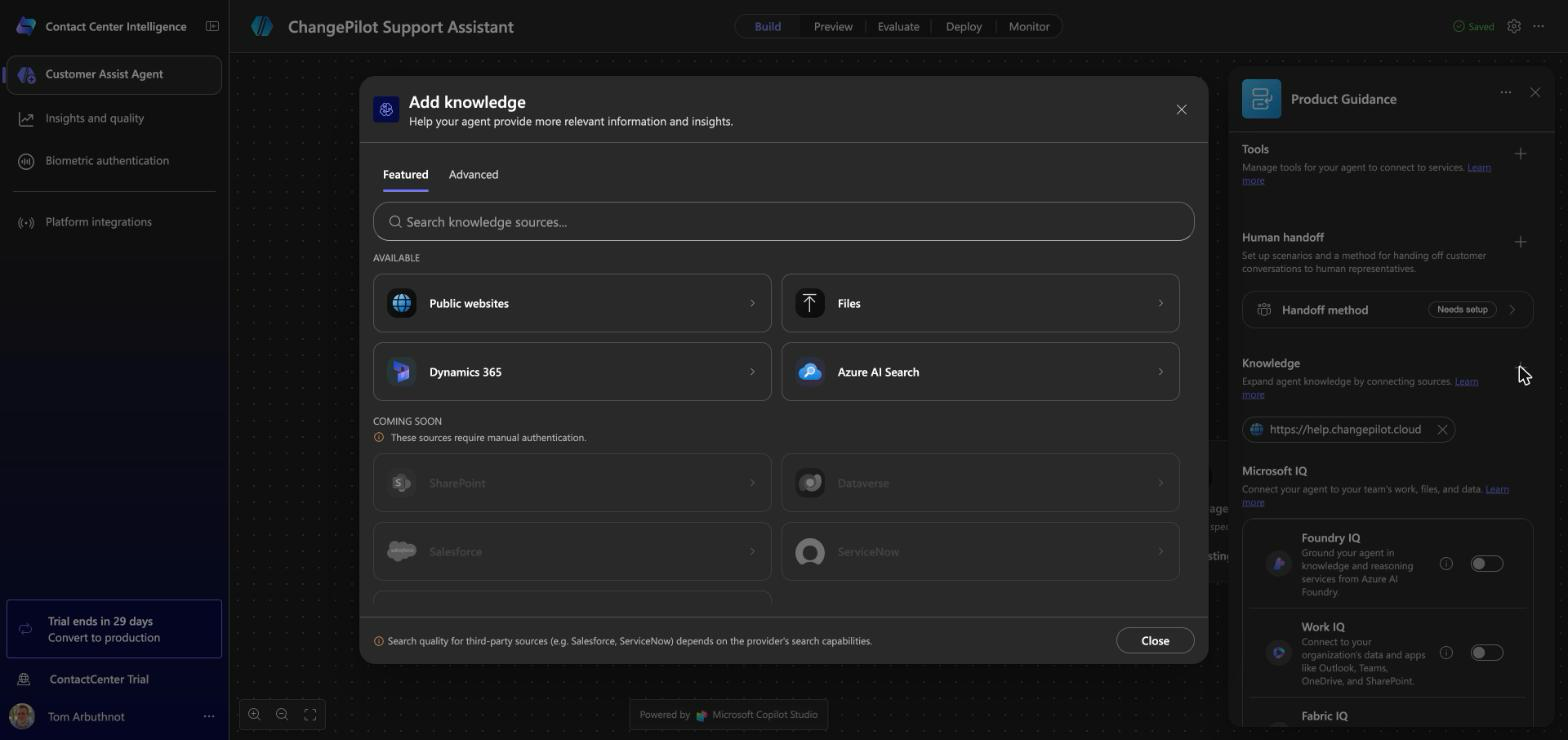
In my trial on 24 November, the Add knowledge dialog offered Public websites, Files, Dynamics 365 and Azure AI Search, with SharePoint, Dataverse, Salesforce and ServiceNow marked as coming soon. Microsoft's knowledge documentation describes those four differently, as sources that need authentication, and says sources that need the user's own sign-in only work in chat, not on a voice call.
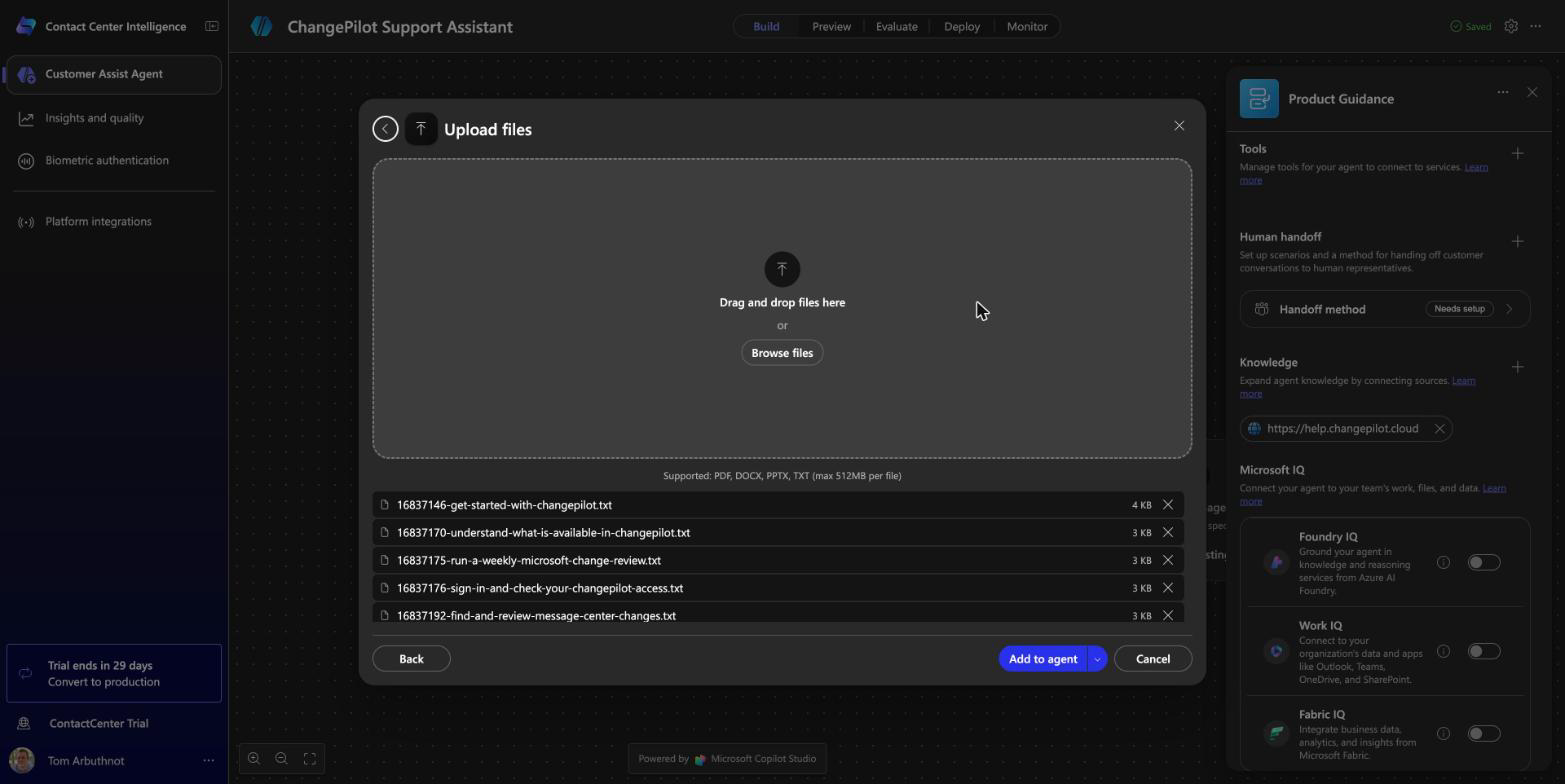
I exported our 42 help articles as text files and added them as Files. The upload takes PDF, DOCX, PPTX and TXT, and processing took about two minutes.
The same question then returned the real requirements and the real steps, and the activity map showed something it had never shown before: "Knowledge sources that returned results", with a citation to the right article.
Step 3: Choose a voice model and voice settings
Before you test, decide how the agent should sound. The model setting is a dropdown on the primary agent, and in my trial it had two choices.
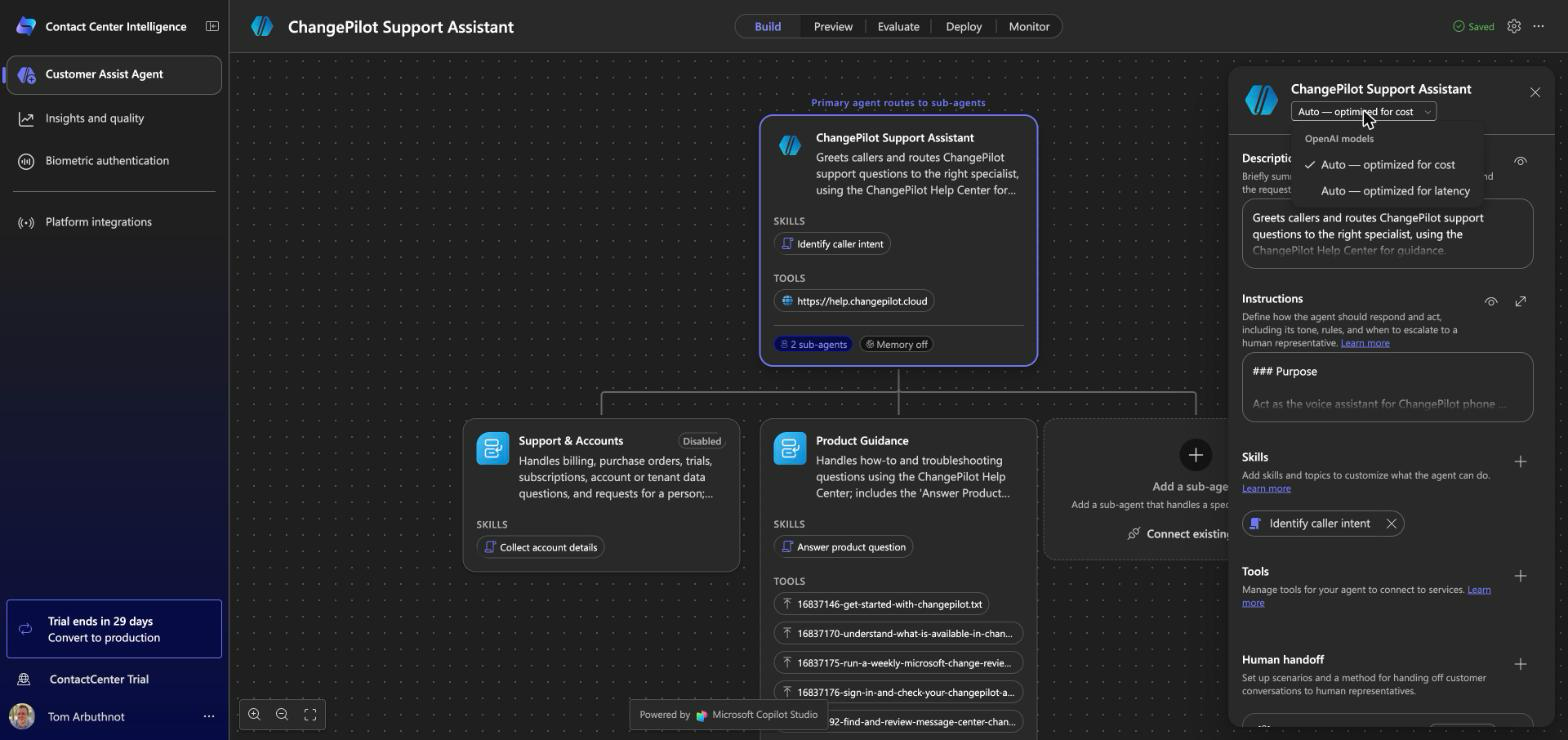
According to Microsoft's model documentation, the default, Auto — optimized for cost, is a cascaded pipeline: speech to text, a language model, then a neural text-to-speech voice. The alternative, Auto — optimized for latency, is speech-to-speech on a realtime model.
- Optimized for cost: speech to text, a language model, then text to speech. Microsoft's planning estimate is about 10 to 15 credits a minute.
- Optimized for latency: speech-to-speech. Microsoft's planning estimate is about 17 to 22 credits a minute.
I started on the default and switched later, so I could compare the two. What I heard is in Step 4.
Voice settings
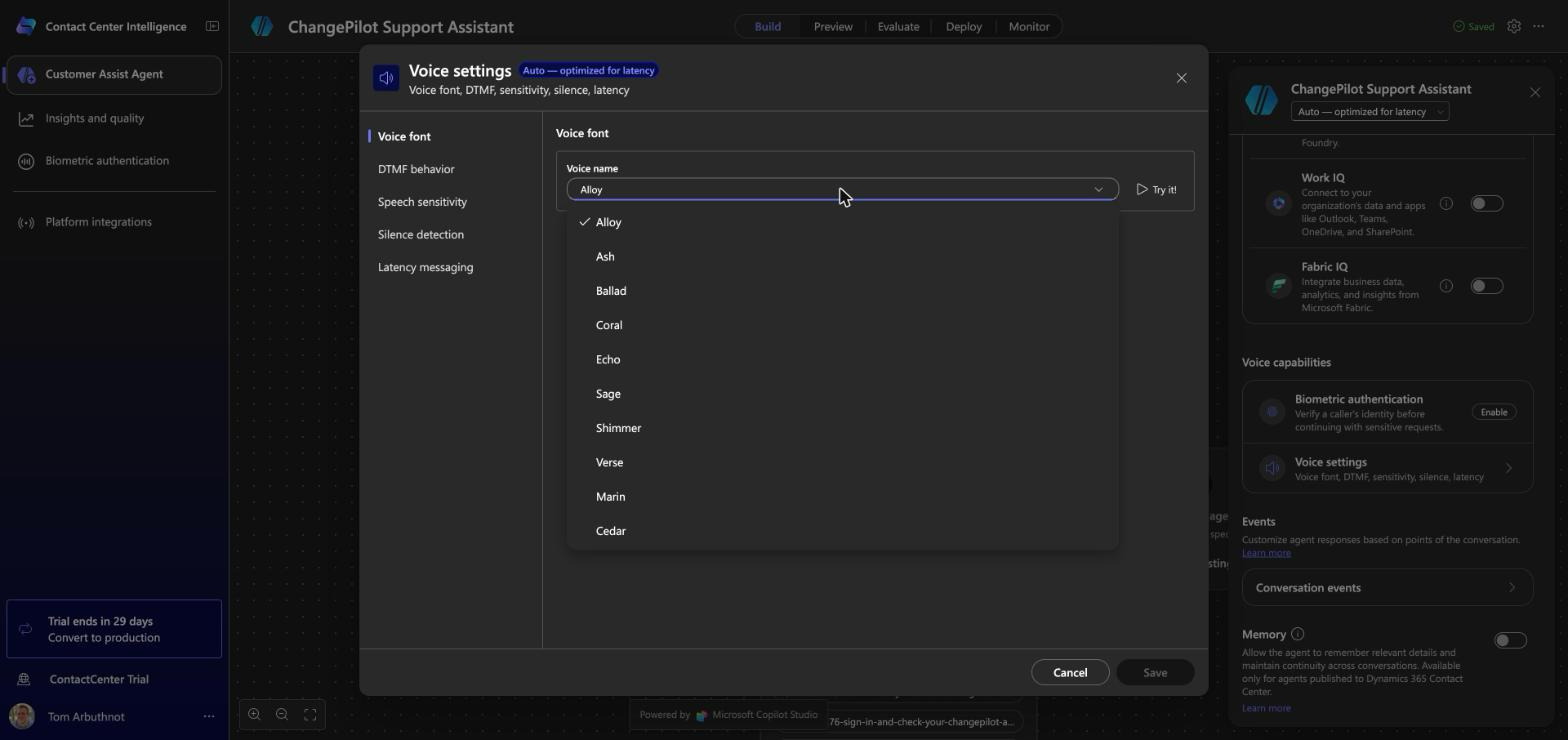
The model you choose also changes which voices you get. Voice settings is under Voice capabilities in the primary agent's panel, and had five tabs when I looked, with the agent in latency mode. Microsoft documents them in Configure voice settings.
Voice font is where the two modes differ most:
- Optimized for cost uses Microsoft's neural text-to-speech voices. According to the documentation you get a voice name, a speaking speed slider and a voice pitch slider, with the voice following the agent's Primary language. My agent's primary language was English (United States), and my first real call was answered by
en-US-AdamMultilingualNeural, an American voice on a UK support line. If you want a British voice, check the primary language before you go live. - Optimized for latency offers ten named voices and nothing else: Alloy, Ash, Ballad, Coral, Echo, Sage, Shimmer, Verse, Marin and Cedar. There is no language, accent, speed or pitch setting. Mine defaulted to Alloy. There is a Try it! button next to the list.
The other four tabs, with the settings I found in latency mode:
- DTMF behavior: whether callers can use the keypad, how long to wait between digits, and which key ends the entry. Mine was set to allow DTMF, with a 3000 ms interdigit timeout and # as the termination key.
- Speech sensitivity: how the agent decides the caller has stopped speaking. Mine was based on sound (silence), with a threshold of 0.60, 300 ms prefix padding and a 500 ms silence duration.
- Silence detection: whether the agent reacts when the caller says nothing. Mine was set to no silence timeout.
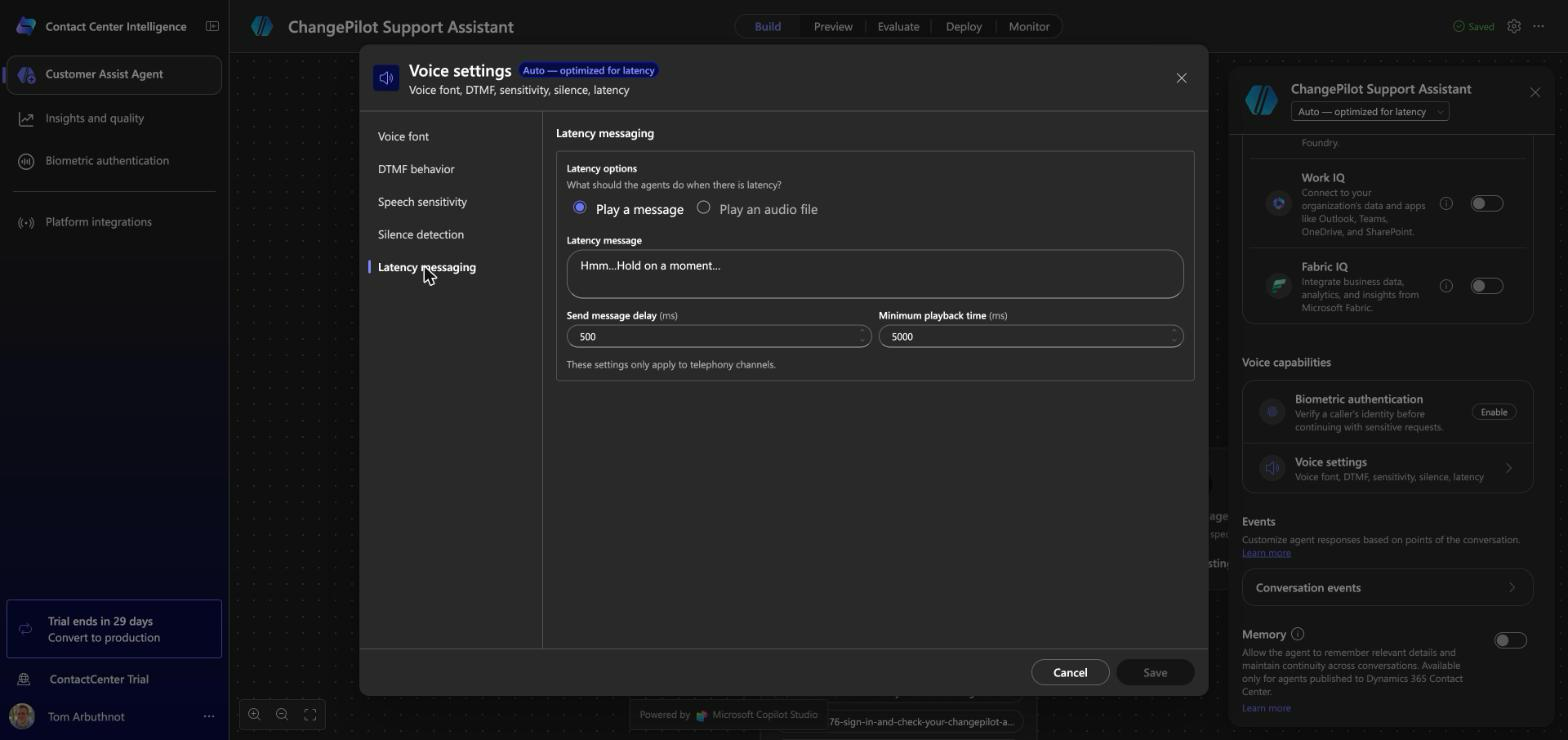
- Latency messaging: what the caller hears while the agent is working, either a message or an audio file. Mine was set to play the message "Hmm...Hold on a moment...", sent after 500 ms and played for at least 5000 ms.
Speech sensitivity is the one to know about if callers complain the agent talks over them or waits too long to reply. Microsoft's documentation says the controls differ by mode: a single sensitivity slider in cost mode, and in latency mode a choice between detecting silence and "semantic" detection, which works out from what was said whether the caller has finished. Cost mode also has a Speech collection setting, with an utterance end timeout of 700 ms by default, which controls how long the agent waits before deciding the caller has finished. My silence duration was 500 ms; Microsoft's documentation suggests 750 ms as a starting point.
The holding lines I heard in testing were not this configured message. The configured message is "Hmm...Hold on a moment...", and the setting only applies to telephony, yet the lines in my transcripts were varied and specific, such as "I'll find the steps for connecting a tenant". They look as if the agent generates them, but I have not confirmed with Microsoft where they come from or how the two relate.
Step 4: Test, fix the instructions, test again
The Preview tab has Web Chat and Voice Call, with an activity map alongside. The activity map is the useful part: it shows which sub-agent was used, the task it was given, and which knowledge came back.
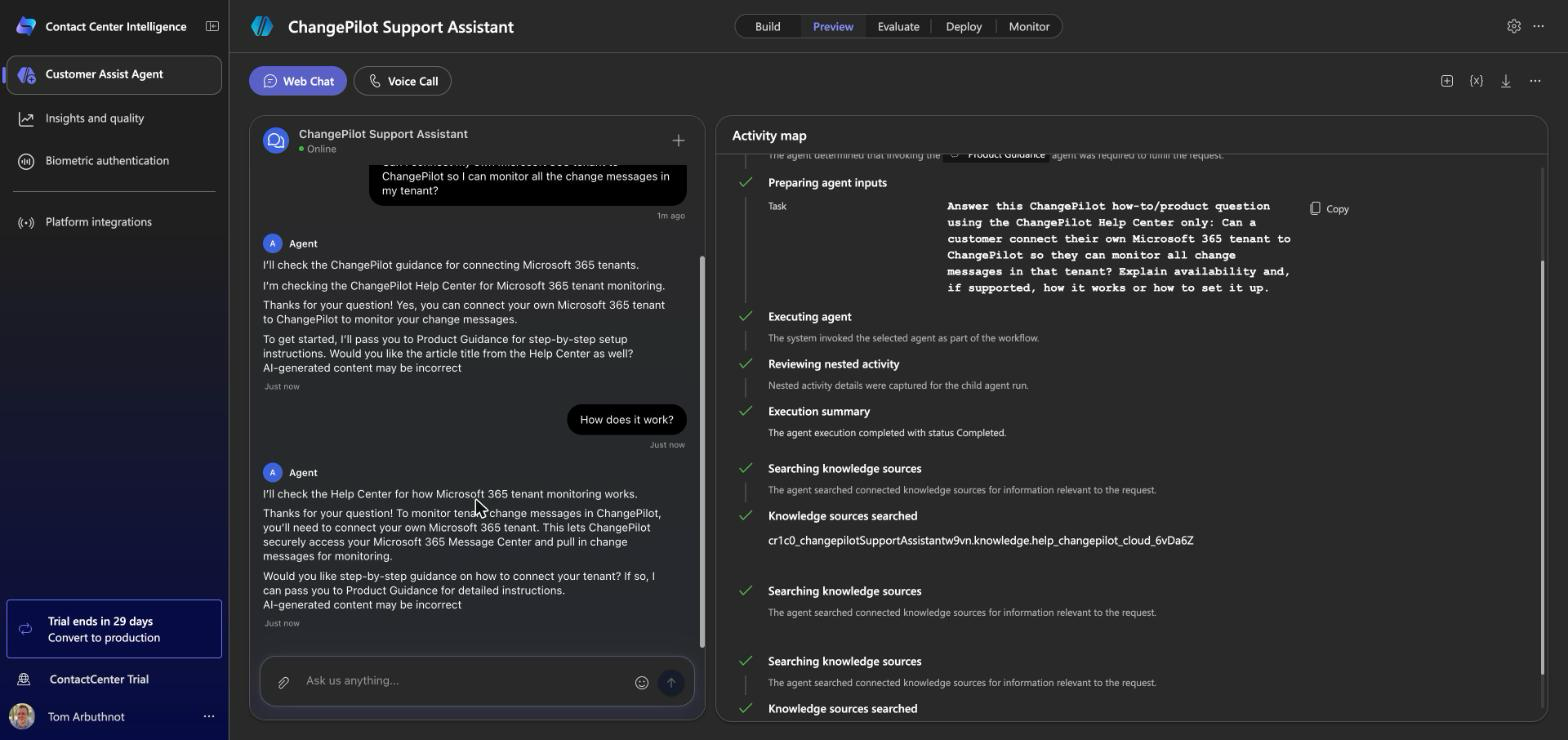
Web chat testing found two behaviours to fix, and this is where instructions do work:
- The agent narrated its own plumbing. It told the customer "I'll pass you to Product Guidance for step-by-step setup instructions". Callers should never hear the name of an internal sub-agent. I added a line telling it never to mention an internal agent, skill or tool by name.
- The primary agent guessed before looking anything up. Its first reply invented a step, and only the follow-up used the knowledge. The activity map showed why: that first reply never touched the knowledge at all. I added: "Do not give any step, menu name, page name or requirement until Product Guidance has found the help article."
Then the voice preview, which is a real voice conversation in the browser with a live transcript.
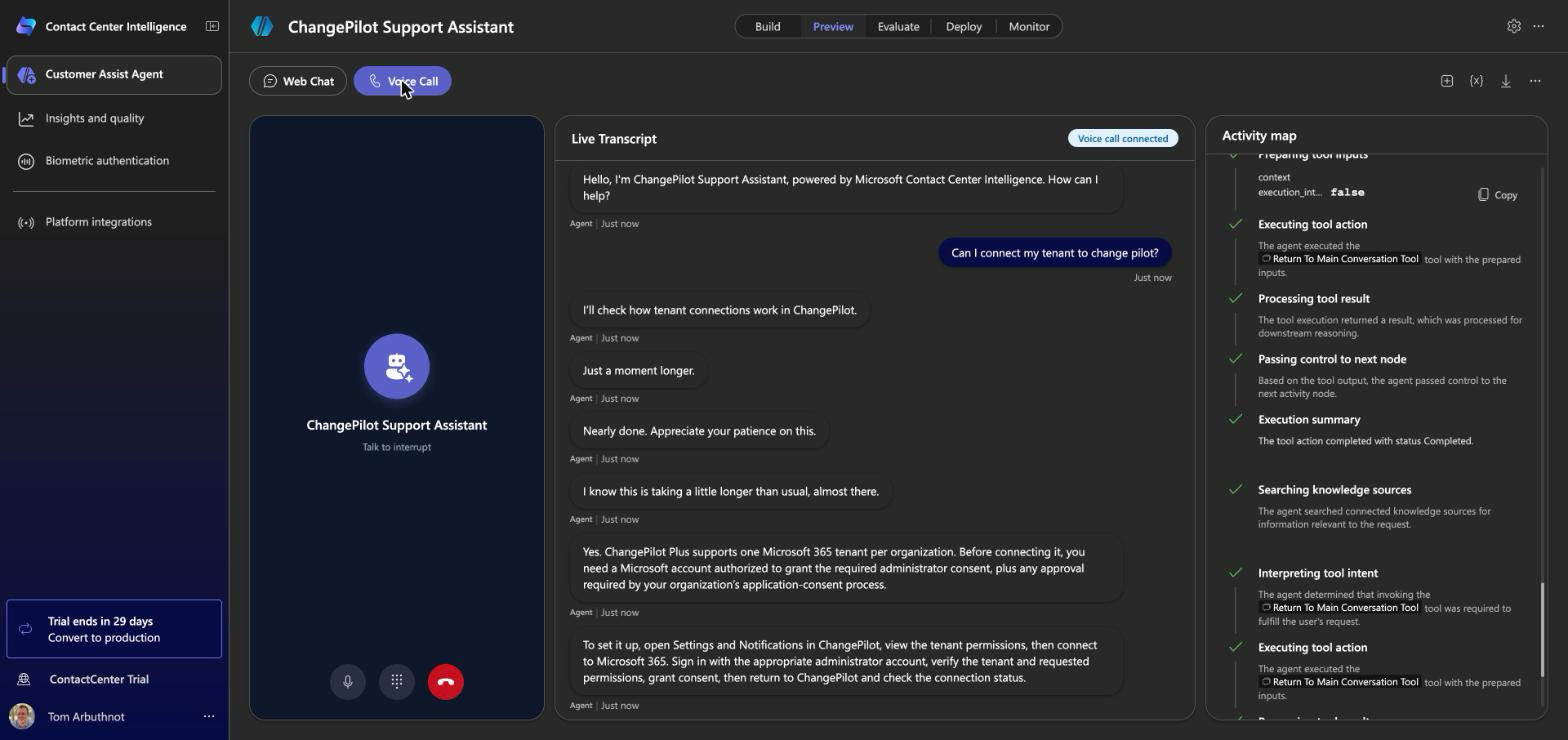
The voice answer was correct and a sensible length for a phone call. While the agent looked up the article, it filled the silence with holding lines such as "Just a moment longer" and "Nearly done. Appreciate your patience on this."
Cost versus latency: what I heard
I ran my tests on the default, cost-optimised model first, then switched the agent to the latency-optimised model and asked the same kind of question.
- Optimized for cost: four or five holding lines before the answer. The answer was correct, but the waiting was noticeable.
- Optimized for latency: two holding lines before the answer. The answer was correct and more complete, and the agent felt more responsive.
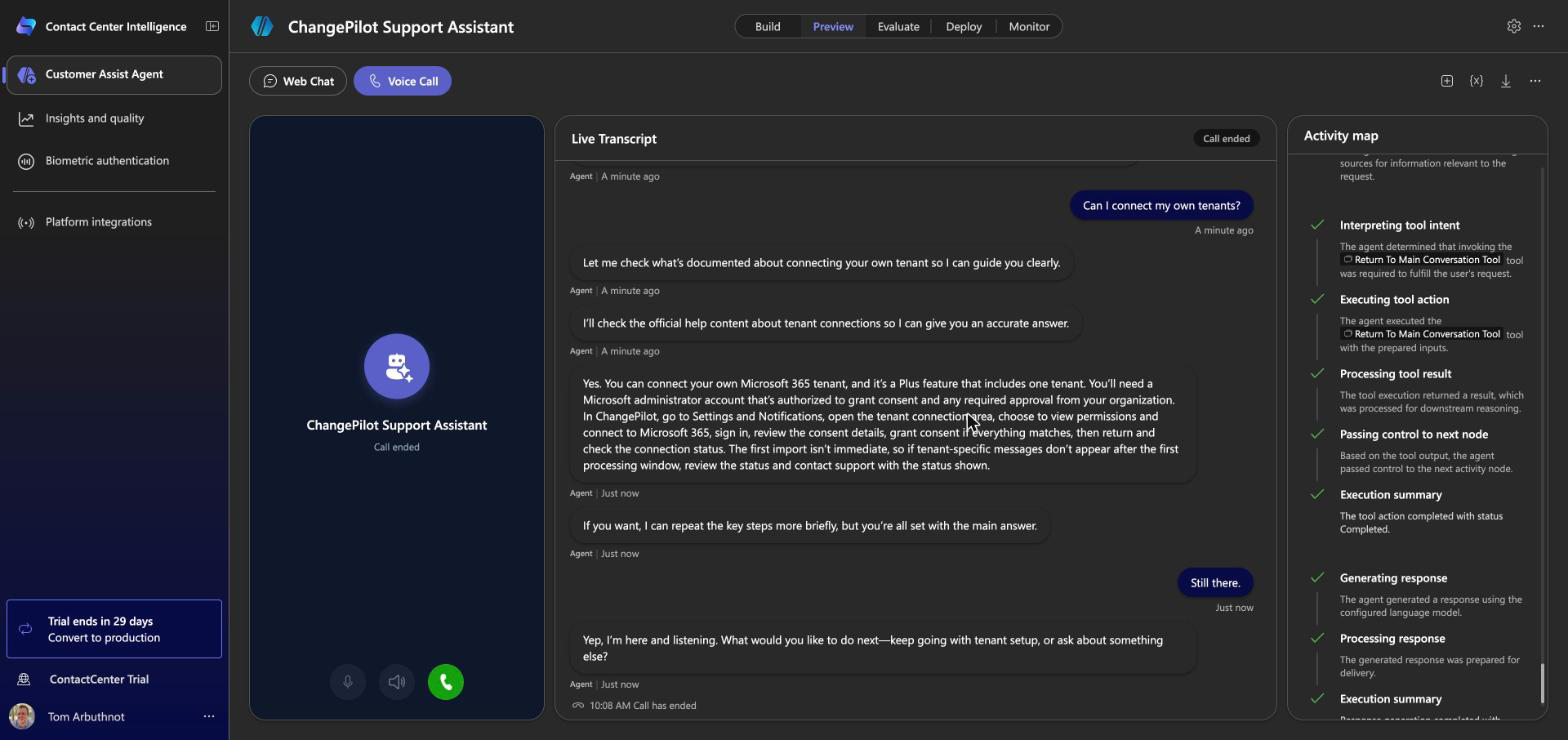
The better voice model did feel more responsive and replied faster, though it still used a couple of phrases to cover the time it spent looking up the answer. The agent still paused while it prepared a grounded answer. I did not measure how much of that was the knowledge lookup, the hand-off between agents or the speech processing.
Step 5: Read the call logs
Once the agent is published to a channel and taking real calls, which is Part 2, calls are logged in its Monitor tab. See sessions lists each call with its duration, number of messages, outcome and channel, and opening one gives you a transcript timestamped to the second. Session data refreshes every 15 minutes and is kept for 28 days. My preview conversations did not appear there, only the real call.
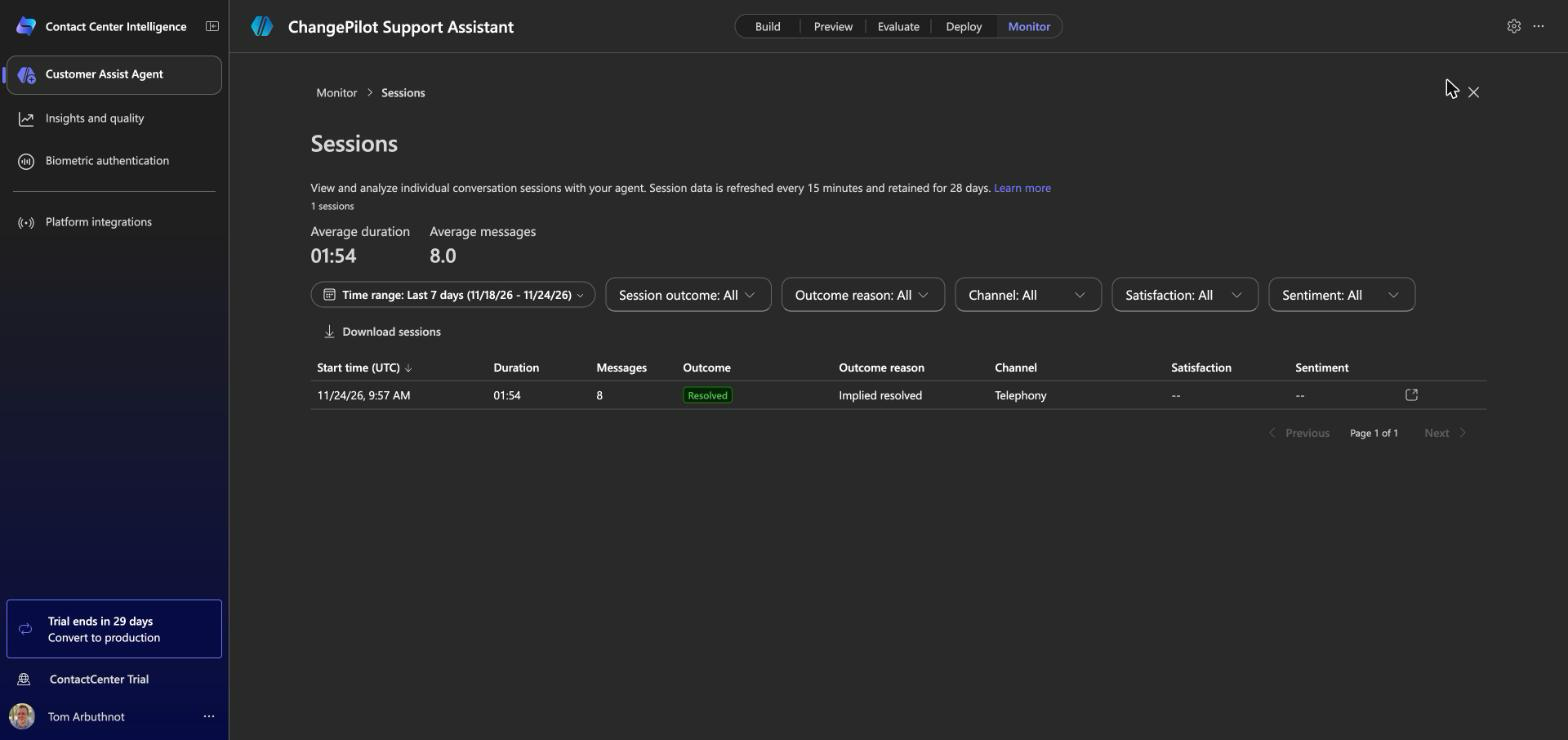
The transcript is the best tool you have for tuning a voice agent, because it shows the waiting. For exact timings of what the caller hears, you would need a recording.
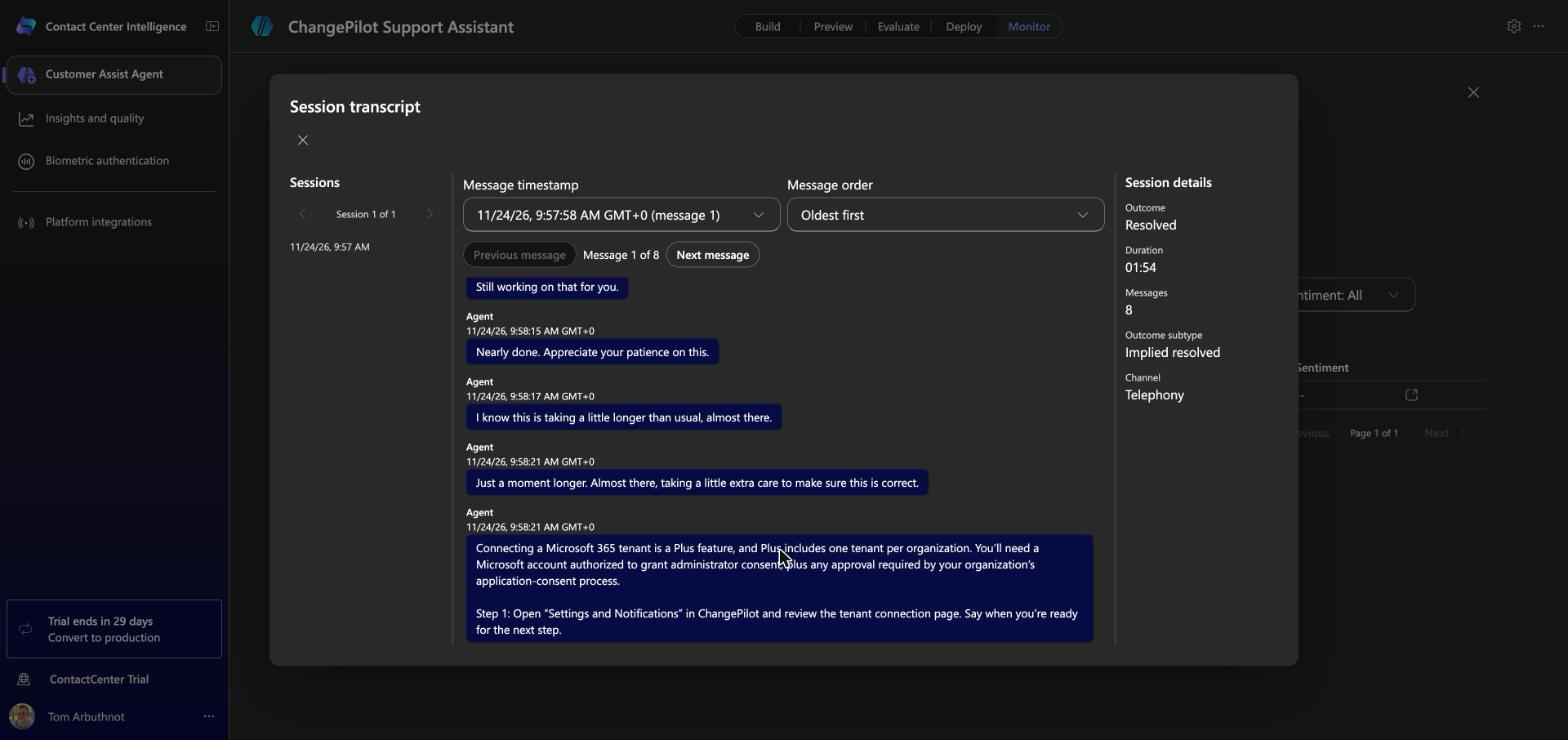
On my first real call, on the cost-optimised voice, my question about connecting a tenant is logged at 09:58:10 and the answer at 09:58:21. The transcript shows five holding lines in those 11 seconds. That is a long time on a phone call.
The answer itself was right, and the right shape for a phone call: the requirements, then step 1 only, then "Say when you're ready for the next step."
What it costs
There is no separate CCI licence to buy. Usage is charged in Copilot Credits, at $0.01 a credit on pay-as-you-go. A live service also needs the Copilot Studio licences listed under What you need, and a way to fund the credits.
Using Microsoft's planning estimates, a five-minute call is roughly 50 to 75 credits on the cost-optimised voice, about $0.50 to $0.75, and 85 to 110 credits on the latency-optimised voice, about $0.85 to $1.10. Those are illustrative running costs for the agent in US dollars. They exclude telephony, and building, testing and evaluating an agent can use credits too.
To model your own volumes, use the cost calculator we built on Empowering.Cloud. Microsoft also has its own Copilot Credit Estimator, and the detail is in the Copilot Credits Guide.
What I can tell you from this build:
- The whole thing ran on the free trial. The tenant had no pay-as-you-go billing plan and no prepaid credits, and the agent still built, published and took real calls.
- The trial environment is set to "Draw from tenant". If your tenant already owns Copilot Credits, check whether a trial uses them.
- Usage reporting is not live. The agent's Monitor tab showed 0 credits straight after the calls, and the capacity view in the Power Platform admin centre refreshes daily.
- You need the right role to see it. The account that created the trial could not view credit capacity until it had the Power Platform administrator or Global Administrator role, and then only after signing out and back in.
Microsoft's guidance on limits and alerts is in Manage usage and costs.
What's next
If you try this, start with the knowledge. Everything else is configuration. Whether your agent tells callers the truth depends on whether it can actually read your content, and that is the part the tools will not check for you.
In Part 2 I take this agent and put it on a real Teams Phone number, then hand callers off to a human in a Teams call queue.
Sources
- Contact Center Intelligence documentation, Microsoft Learn
- Try Contact Center Intelligence: the 30-day trial
- Contact Center Intelligence system requirements
- Add knowledge to a Customer Conversation agent
- Public website knowledge sources and Bing grounding
- Select a model for a Customer Conversation agent
- Voice settings for Customer Conversation agents
- Deploy an agent (Customer Conversation)
- Usage-based billing overview and credit estimates
- Manage usage and costs for the Customer Conversation harness
- Copilot Credits Guide, November 2026
- Microsoft Copilot Credit Estimator
Comments ()