Microsoft 365 Roadmap and Azure Updates (Roadmap) MCP Explained
Change in Microsoft 365 and Azure is coming faster than ever. I've been following Microsoft for over 15 years and, more recently, tracking all changes and change management workflows with ChangePilot.
Change has accelerated significantly, first with Microsoft Teams as the fastest-developing product, and now with AI and Copilot.
The Microsoft 365 Change Management team, that's the Microsoft product team that looks after Roadmap and Message Center, is investing in modernising and AI-powered change management. As part of that work, they have released an MCP server to access the public Microsoft 365 Roadmap and Azure Updates (Roadmap). There is a seperate MCP that can collect you to the Microsoft 365 Message Center and Service Health Information.
Called the Microsoft Release Communications MCP Server, you can connect to it from any MCP-compatible client, and with no authentication, since all the information is public. It enabled IT admins, engineers, and technical users to query Microsoft 365 and Azure release and roadmap information directly from their AI client and bring it into agentic workflows. Use cases could include drafting customer comms, building internal "what changed" digests, prepping for MVP/community content.
The microsoft release communications MCP exposes 4 tools:
get_recent_roadmaps— list recent/filtered items from the M365 Roadmapget_roadmap_by_id— fetch full details for one M365 Roadmap itemget_recent_azure_updates— list recent/filtered items from Azure Updatesget_azure_update_by_id— fetch full details for one Azure Updates item
What is MCP?
Short for Model Context Protocol — an open standard, think of it as "USB-C for AI" — one standard plug that lets any AI model connect to any tool or data source. Without MCP, you would have to connect directly to APIs or scrape information from the roadmap websites.
With MCP, any MCP-compatible AI can use it. This is much easier for users.
How it works (in plain English)
- MCP Server = the thing that exposes tools or data (your calendar, CRM, file system, database) - in this case the Microsoft 365 and Azure Roadmaps
- MCP Client = the AI app that wants to use those tools (Claude, ChatGPT desktop, Cursor, etc.)
Using the Microsoft Release Communications MCP Server with Claude Code
You can connect to the MCP with your AI client of choice, such as Visual Studio Code (VS Code), Visual Studio, GitHub Copilot CLI, Claude Code, and other MCP‑compatible clients. In this example, I will use Claude Code.
- Open your terminal where Claude Code is installed.
- Run the add command using HTTP transport: claude mcp add --transport http microsoft-release-communications https://www.microsoft.com/releasecommunications/mcp --scope user
- Verify it connected: claude mcp list
- You should see microsoft-release-communications: ... ✓ Connected.
- Inspect the config anytime: claude mcp get microsoft-release-communications
- Restart Claude Code — the new tools appear automatically. You can also type /mcp inside Claude Code to see live server status and available tools.
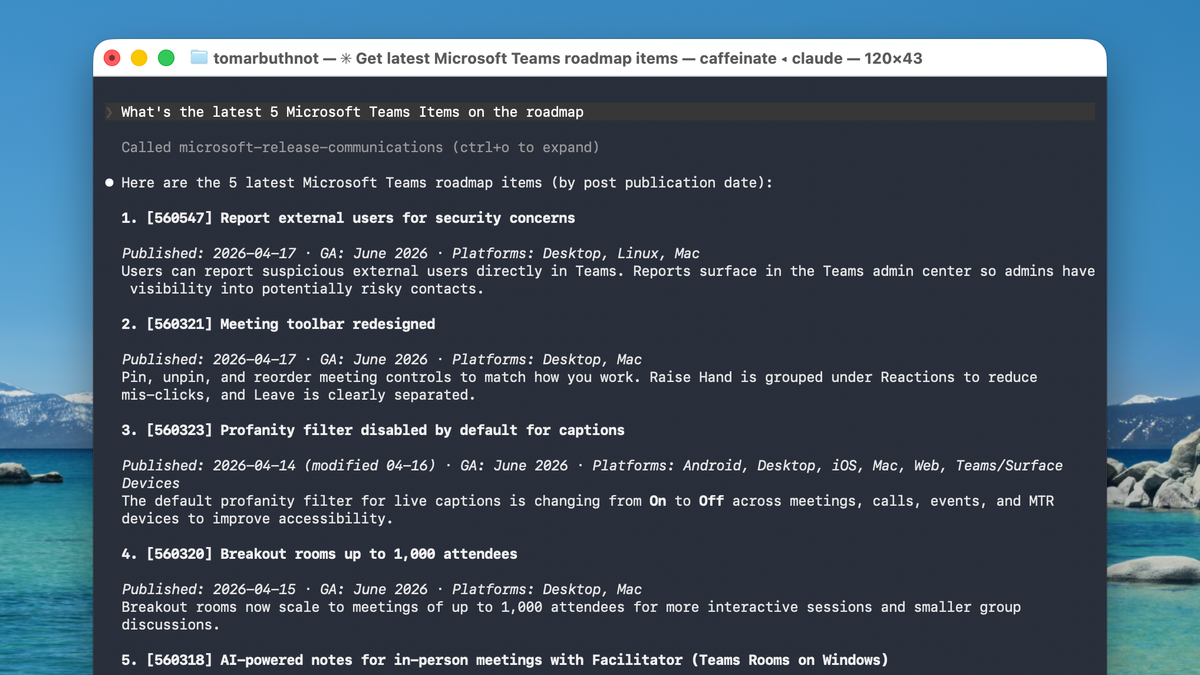
From here, you can now query the Microsoft 365 of the Azure Roadmap using regular English phrasing.
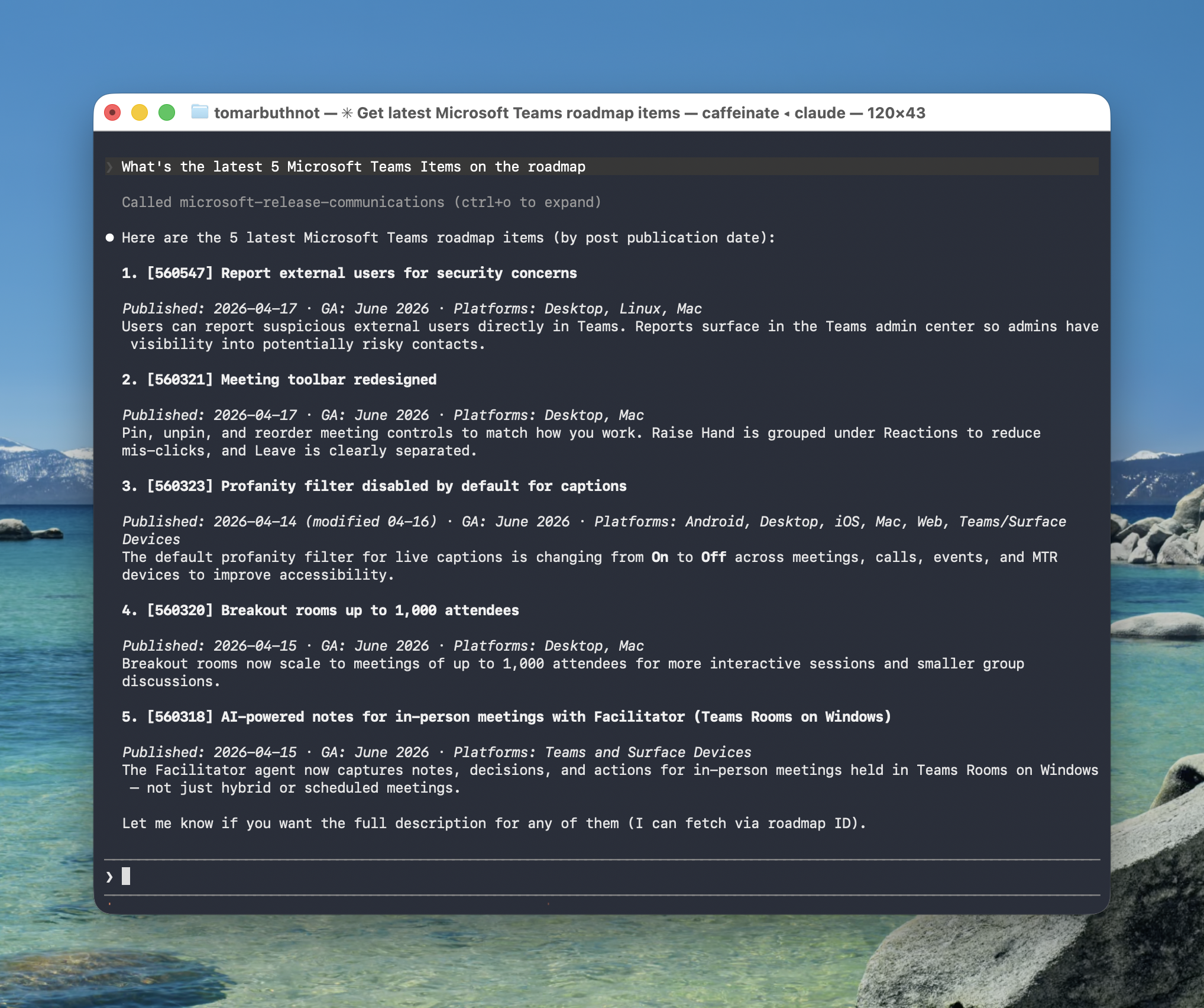
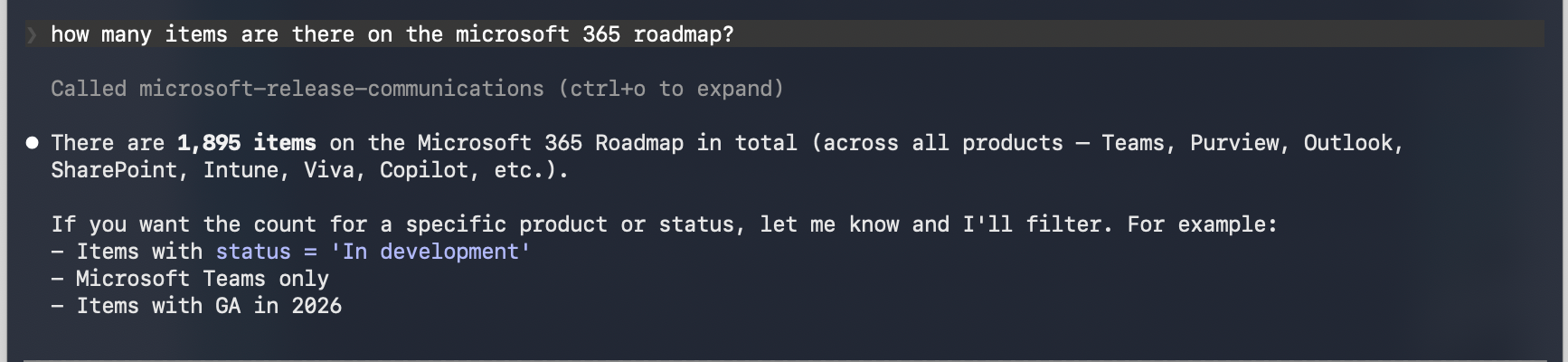
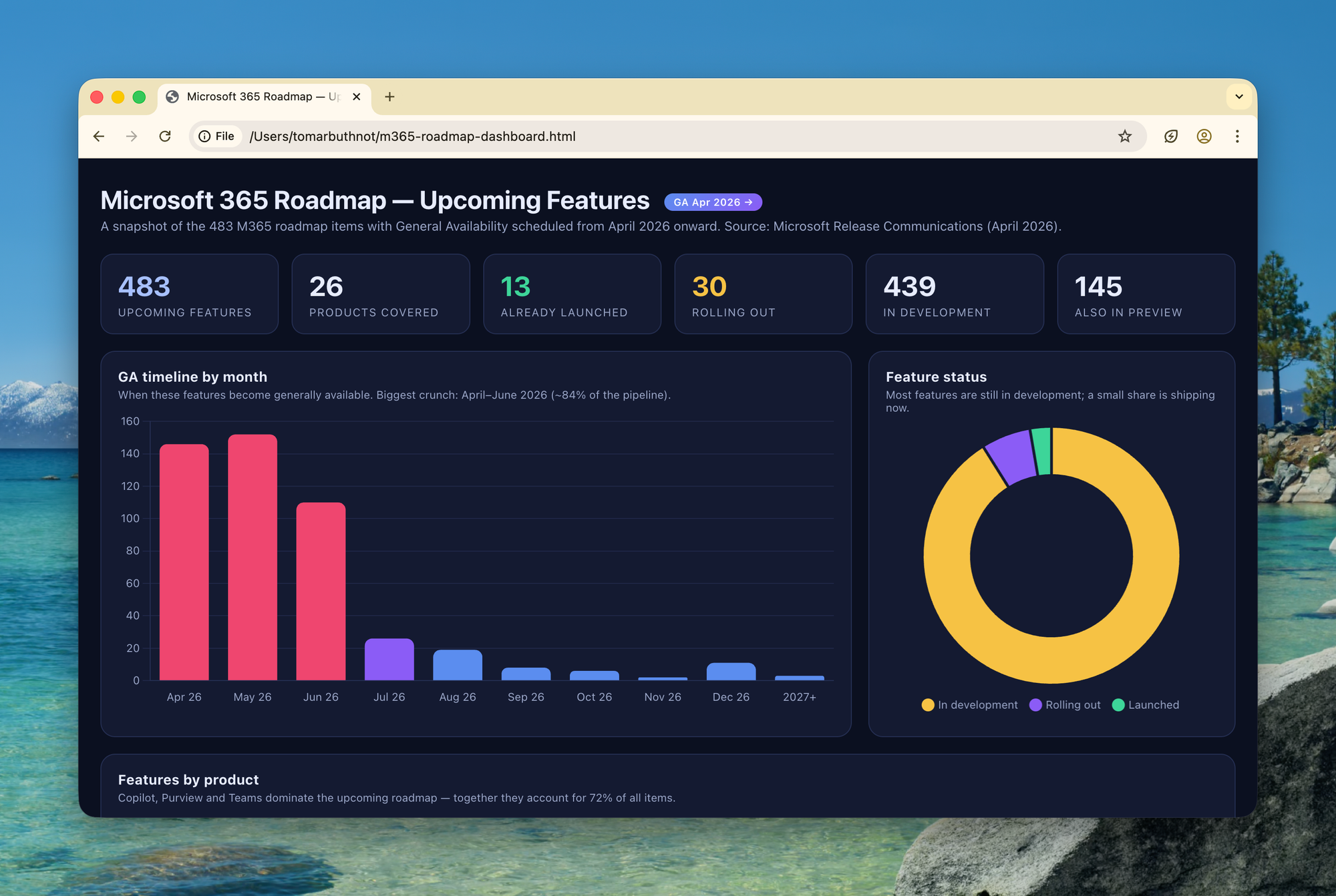
Claude can also use the MCP to collect and visualise the information
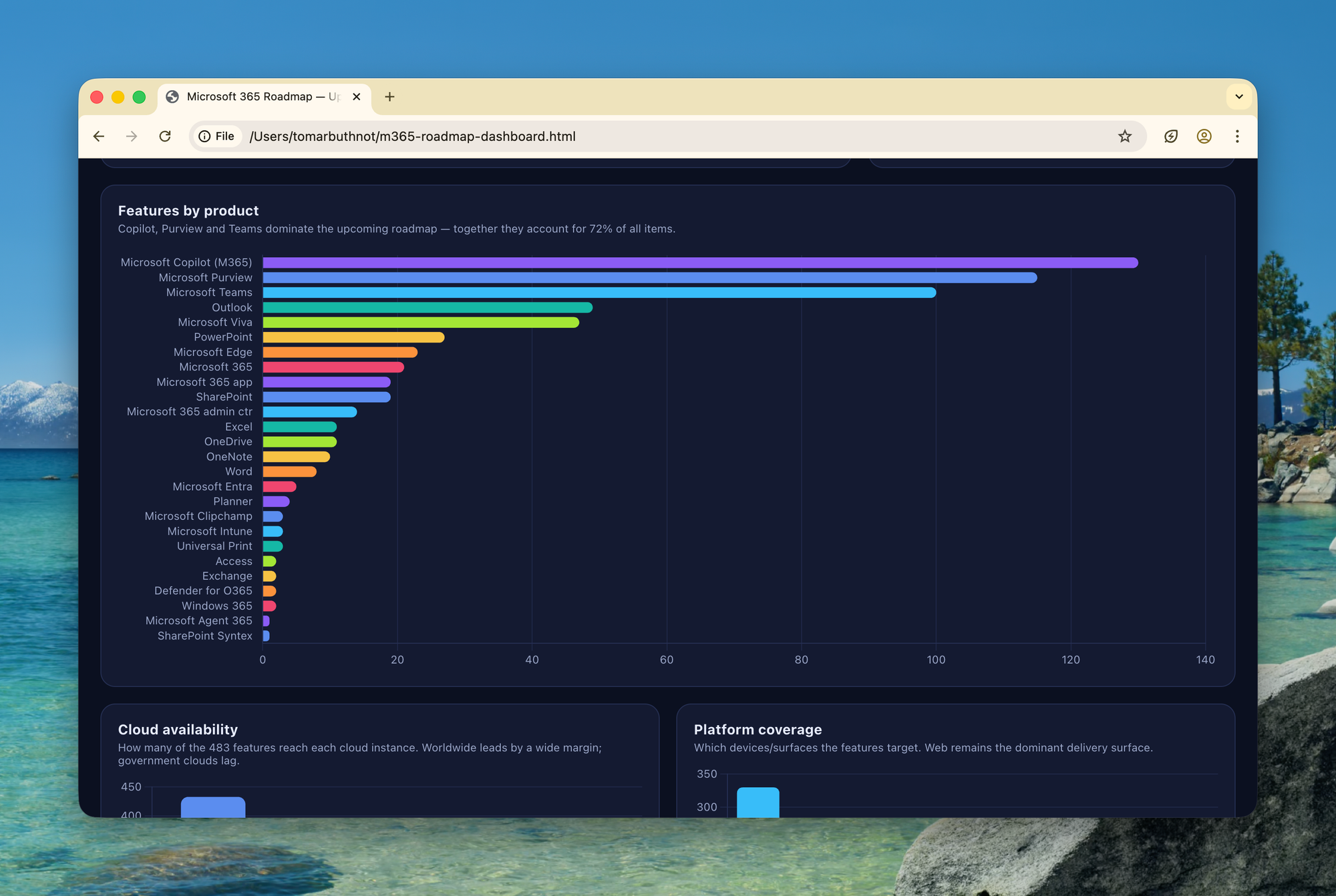
Microsoft 365 Roadmap Fields Explained
If you work with the Microsoft 365 Roadmap — whether you're tracking upcoming features, building integrations against the data, or just trying to make sense of what Microsoft is shipping next — it helps to know exactly what each field means. Here's a reference breakdown of every field returned for a roadmap item.
Core identification
id— Unique numeric ID for the roadmap post (e.g.560547). Use it to fetch full details for a single item.baseId— Original/parent ID. Usually matchesidbut differs when a post has been cloned — for example, a GCC variant of a Worldwide item.title— Post headline, typically prefixed with the product name, e.g. "Microsoft Teams: Meeting toolbar redesigned".description— Summary of what the feature does. Truncated in list responses — fetch by ID for the full text.moreInfoUrls— An array of Microsoft Learn or docs links with deeper reference material. Often empty.
Status & lifecycle
status— Current stage: In development, Rolling out, Launched, or Cancelled.created— ISO 8601 timestamp. When the post was first published to the roadmap.modified— ISO 8601 timestamp. When the post was last updated (e.g. dates shifted, status changed).
Release timing
generalAvailabilityDate— The month the feature becomes broadly available to all customers. Format:YYYY-MM(e.g.2026-05).previewAvailabilityDate— Month the feature enters public preview, if applicable.availabilities— A structured array containing both of the above, withring,year, andmonthfields. Useful for filtering — e.g. "everything GA in June 2026".releaseRings— How the feature rolls out: Targeted Release (Select People) → Targeted Release (Entire Organisation) → Preview → General Availability → Current Channel. Tells you who gets it first.
Scope — who and where
products— Product(s) the feature belongs to: Microsoft Teams, SharePoint, Outlook, Purview, Microsoft Copilot, Exchange, OneDrive, Planner, Intune, Viva, Whiteboard, Word, Excel, PowerPoint, and more. A feature can belong to multiple products.platforms— Where the feature runs: Desktop, Mac, Web, iOS, Android, Linux, Mobile, Teams and Surface Devices, Education, Developer.cloudInstances— Which Microsoft cloud environments support it: Worldwide (Standard Multi-Tenant), GCC, GCC High, DoD. Important for government and regulated tenants.
Key distinctions to keep straight
createdvsgeneralAvailabilityDate—createdis the announcement date on the roadmap;generalAvailabilityDateis the shipping date. These are often very different — a feature can be announced long before it shipsreleaseRingsvscloudInstances— rings describe rollout phases within a tenant; cloud instances describe which commercial or government cloud supports the feature at all.availabilitiesvsgeneralAvailabilityDate/previewAvailabilityDate—availabilitiesis the structured nested version (filterable by ring, month, year); the flat date fields are simpler text values inYYYY-MMformat. Use whichever fits the query you're writing.
Azure Updates Fields Explained
If you work with Azure Updates — whether you're tracking what's coming on the platform, building dashboards against the feed, or just trying to keep up with a service that ships constantly — it helps to know exactly what each field means. Here's a reference breakdown of every field returned for an Azure Updates post.
Core identification
id— Unique numeric ID for the update post. Use it to fetch full details for a single item.baseId— Original/parent ID. Usually matchesid, but may differ for cloned posts.title— Headline of the update.description— Summary of the change. Truncated in list responses — fetch by ID for the full text.
Status & lifecycle
status— Current stage: In development, In preview, Launched, or null.created— ISO 8601 timestamp. When the post was first published to Azure Updates.modified— ISO 8601 timestamp. When the post was last updated.
Release timing
privatePreviewAvailabilityDate— Month the feature enters private preview. Format:YYYY-MM.previewAvailabilityDate— Month the feature enters public preview.generalAvailabilityDate— Month the feature becomes broadly available.availabilities— Nested array withring,year, andmonthfields. Azure adds a specialring = 'Retirement'entry for end-of-life dates.
Scope & classification
products— Specific Azure service(s) the update applies to — e.g. Azure Storage, Azure Machine Learning, Automation.productCategories— Higher-level grouping: Compute, Databases, Networking, Security, Storage, Analytics, Containers, DevOps, Management and governance, Web.tags— Editorial classification: Features, Retirements, Compliance, Management, Microsoft Ignite, Open Source, Pricing & Offerings, Regions & Datacenters, Security, Services.
Differences between Microsoft 365 Roadmap fields and Azure Updates (Roadmap) Fields
The M365 Roadmap and Azure Updates look similar on the surface — both are feature feeds from Microsoft with dates, descriptions, and statuses — but the data structures is different. If you're building anything that consumes both, these are the gotchas worth knowing up front.
Key differences
- Preview stages
- M365: one stage —
previewAvailabilityDate - Azure: two stages —
privatePreviewAvailabilityDateandpreviewAvailabilityDate
- M365: one stage —
- Status values
- M365: In development / Rolling out / Launched / Cancelled
- Azure: In development / In preview / Launched
- Rollout phases
- M365:
releaseRings— Targeted Release, Preview, GA, Current Channel - Azure: no rings — uses tags and status only
- M365:
- Cloud scope
- M365:
cloudInstances— Worldwide, GCC, GCC High, DoD - Azure: not present — handled via product and region posts instead
- M365:
- Platforms
- M365:
platforms— Desktop, Mac, Web, iOS, Android, etc. - Azure: not applicable (Azure is cloud-only)
- M365:
- Category grouping
- M365: none — product alone
- Azure:
productCategories— Compute, Networking, Storage, and so on
- Editorial tags
- M365: none
- Azure:
tags— notably Retirements for end-of-life announcements
- Retirement/end-of-life
- M365: not tracked on the roadmap, tracked in Message Center.
- Azure: first-class —
tags = 'Retirements'plusavailabilitieswithring = 'Retirement'
Differences Summary
- Retirements live on Azure Updates, not the M365 Roadmap. If you're tracking end-of-life for Azure services, filter by
tags = 'Retirements'and read the Retirement ring inavailabilities. - Azure has a three-stage preview path (private → public → GA); M365 has one.
- M365 tells you who and where (rings, clouds, platforms). Azure tells you what kind of change (tags, categories).
- Ring vocabulary differs inside
availabilities. M365 uses General Availability and Preview; Azure adds Retirement.
Comments ()